


Notify users by email.
How-to Guides → Solution Examples → Feature Examples → Industrial Operations Examples → Alarm Email Example
Download the solution: Alarm Email Example.dbsln version fx-10.1 (Update 3a)
Download the DLL requirements: DLL Email.rar
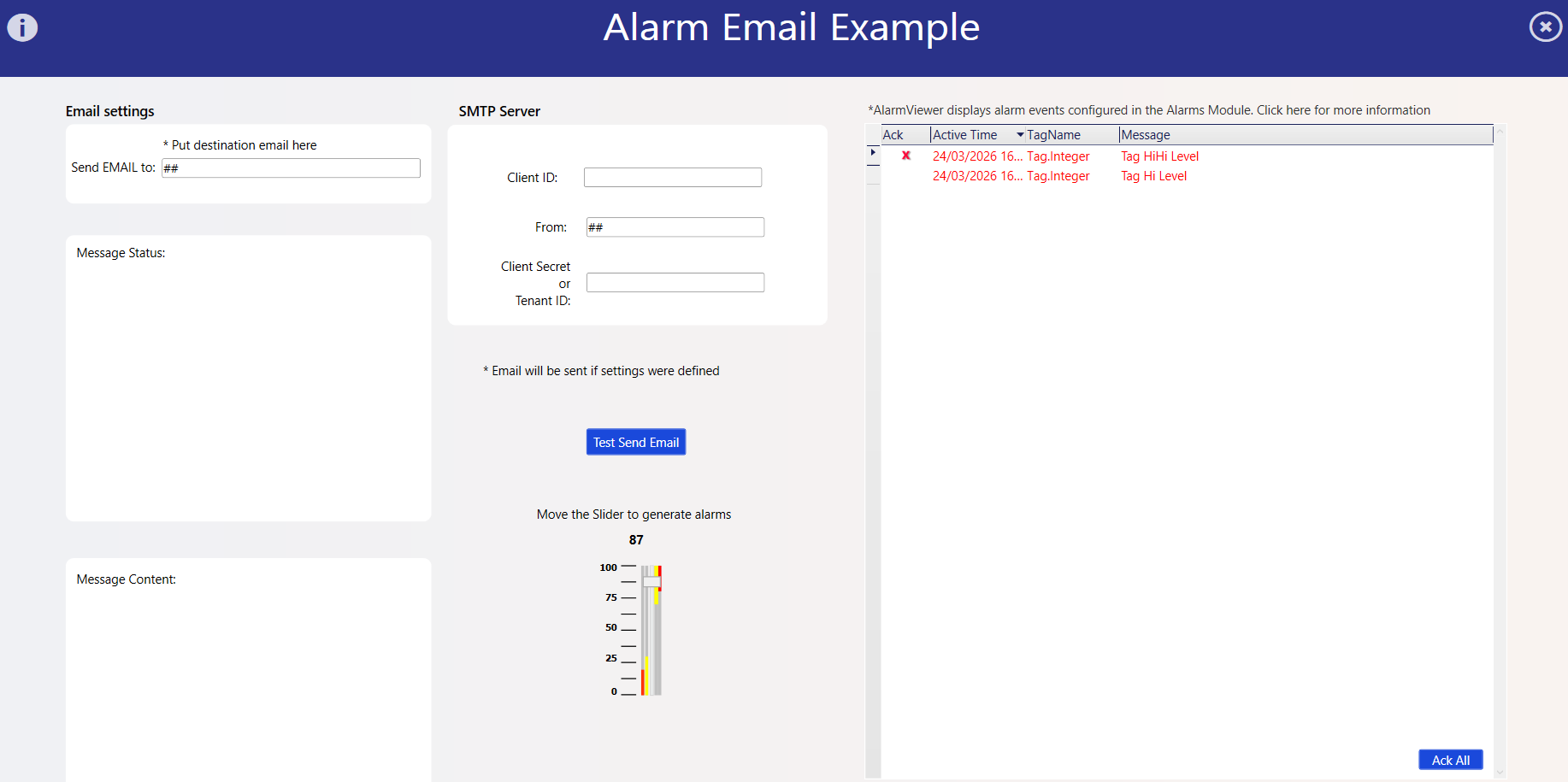
This solution demonstrates how to configure the system to send email.
Technical Information
The method AlarmEvents(AlarmEventInfo[] events) is automatically called whenever a conditional alarm event occurs. It receives an array of events and processes the first one to send a notification.
OAuth2 Authentication Update (Gmail/Outlook)
Important:
This version uses OAuth2 instead of Basic Authentication for email sending. Username/password authentication is no longer supported for providers like Gmail and Outlook.
Required Dependencies
It is necessary to download our DLL Email.rar and extract the DLL files to your chosen path.
public void AlarmEvents(AlarmEventInfo[] events)
{
	if (events == null)
		return;
	@Info.Trace("Alarms, count = "+events.Length.ToString());

	AlarmEventInfo test = events[0];
	@Info.Trace("Alarms, State = " + test.State.ToString());

	if (test.State != 1)
		return;

	string body = "Time: " + test.ActiveLocalTime.ToString() + "\n" +
	"Message = " + 	test.Message + "\n" +
	"Area = " + test.Area + "\n" +
	"Group = " + test.Group + "\n" +
	"Tag = " + 	test.TagName + "\n"	 ;

	OAuth2EmailSender mySender = new OAuth2EmailSender();

	mySender.SendEmailAsync(@Tag.fromEmail, @Tag.toEmail, "Alarm beeped!", body);

}
Credentials Required
Depending on your provider, you’ll need to configure OAuth2 credentials instead of using a regular email and password. Here's some examples on how you can do that:
For Gmail
To authenticate with Gmail via OAuth2, you’ll need to generate a Client ID and a Client Secret through the Google Cloud Console:
Go to Google Cloud Console
Create or select a project
In the APIs & Services > Library, search for and enable the Gmail API
Then go to OAuth consent screen and choose the External option. Set your app name, support email, and developer contact info (all can be your own Gmail).
After configuring the consent screen, go to Credentials, click Create Credentials > OAuth Client ID, and choose Desktop App
Name it something like
"DesktopMailer"and click Create — you'll receive your Client ID and Client SecretAs a final step, go back to the OAuth consent screen, scroll to Test users, and add your own Gmail to be able to test sending emails
You'll use the credentials like this:
GmailClientId = "your-client-id.apps.googleusercontent.com";
GmailClientSecret = "your-secret";
For Outlook
To authenticate with Outlook using OAuth2, you’ll need a Client ID and Tenant ID, obtained through the Azure portal.
You must register an application, define redirect URIs, and configure Microsoft Graph API permissions (e.g., Mail.Send).
In this section...