


The Displays module creates the Operator UI that runs on desktop, web and mobile users.
Modules → Displays | Tutorial | How-to Guide | Reference
 Displays Module Overview
The Displays module creates the Operator UI that run identically across desktop, web, and mobile platforms using a unified designer and WebAssembly technology for high-performance visualization.
The displays can be organize to the operator to have a fixed Header or Menu area, as defined on the Displays Layouts.
Key Concepts
- *Display/Screen*: Page or dialog for operator user interfaces
- *Layout*: Frame organization with sidebars, top bars, and main content areas
- *Client*: Each operator connection interacting with displays
- *Canvas Displays*: Process synoptics with fixed element relationships
- *Dashboard Displays*: Responsive grid-based data presentation
- *RESS*: Responsive Design + Server-Side Components for device optimization
Canvas Displays and Dashboard Displays
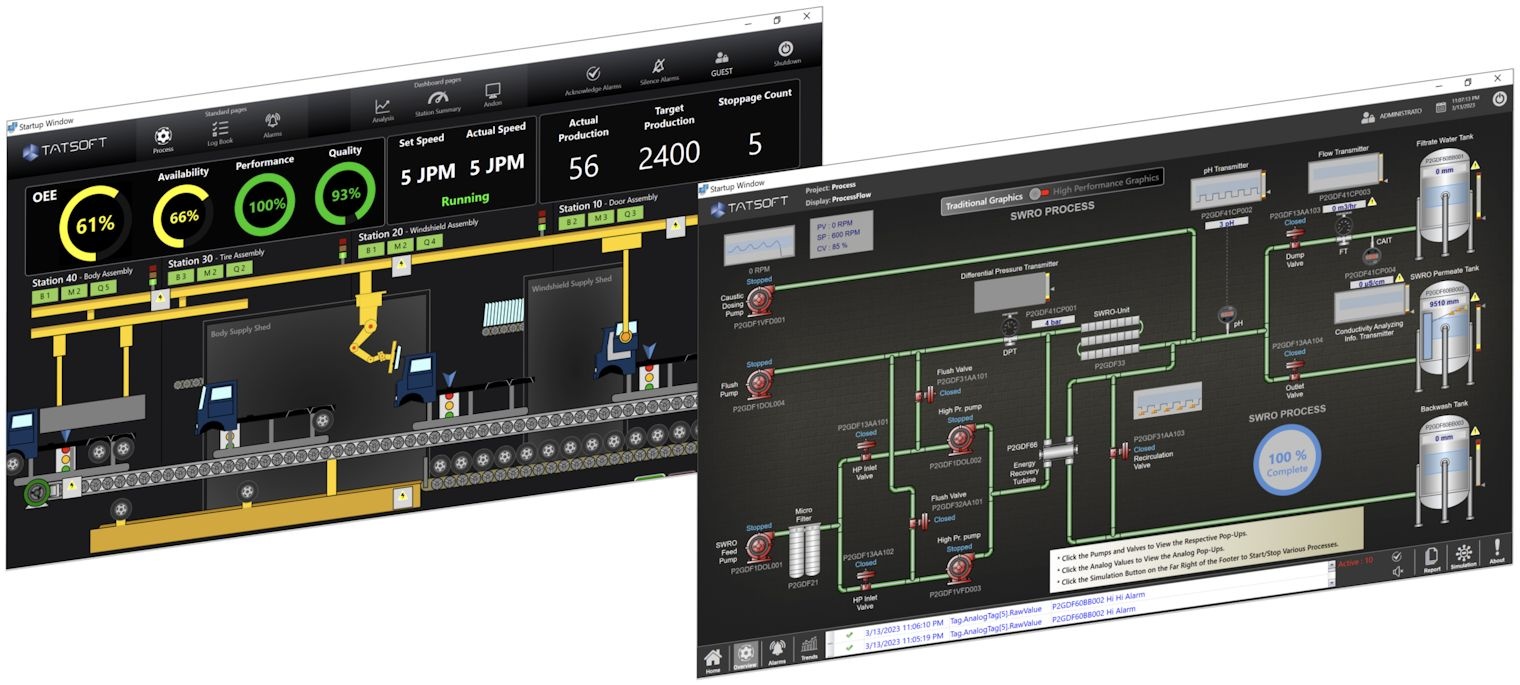
Canvas Displays: Process synoptics with fixed element relationships
Maintain element relationships during resize, ideal for process diagrams and P&IDs.
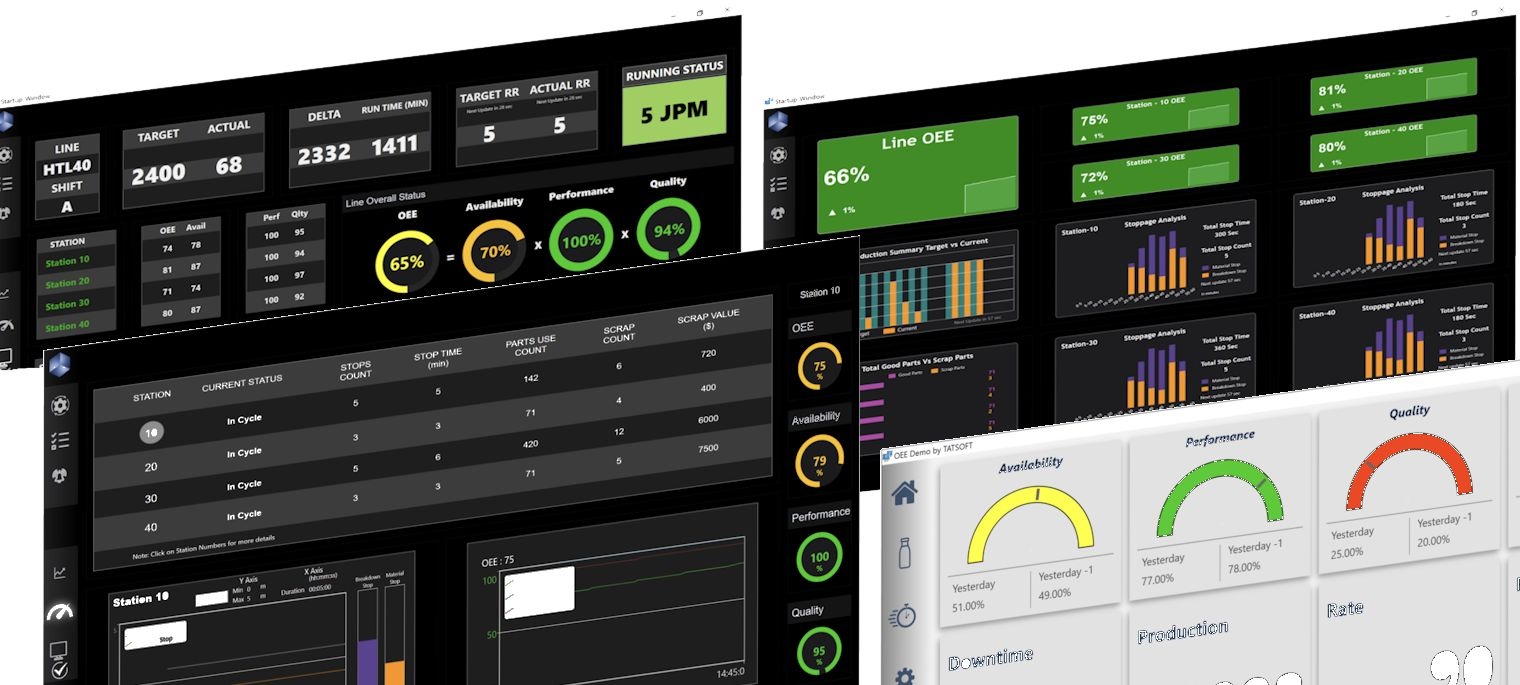
Dashboard Displays: Responsive grid-based data presentation
Reorganize blocks based on window size, perfect for KPIs and data visualization.
RESS Technology for Mobile Client
- The feature: Both Canvas and Dashboards displays, can be responsive, adapting automatically to user screen size and devices.
- The problem that remains: responsive UI does not solve the issues that a display designed originally to large desktop will never be practical for mobile users.
- The solution: RESS = Responsive Design + Server-Side Components
RESS Technology: Server detects device class (phone, tablet, desktop) and delivers optimized content while maintaining responsive behavior within each class. This provides fast loading with flexible layouts.
RESS means fast + flexible: we detect your device on the server, send only the right page for it, and the layout still responds smoothly to in-between screen sizes.
How RESS works: the server recognizes your device class (phone, tablet, desktop) and delivers a light, tailored page—images, code, and content sized for that device. The page is still responsive, so it adapts fluidly between breakpoints. You get the speed of adaptive delivery with the flexibility of responsive design. See it in action:
Runtime Behavior
Client Types
- *Rich Client*: Native Windows desktop application
- *Smart Client*: Lightweight desktop client
- *Web Client*: Browser-based access
- *Mobile Client*: Touch-optimized mobile interface
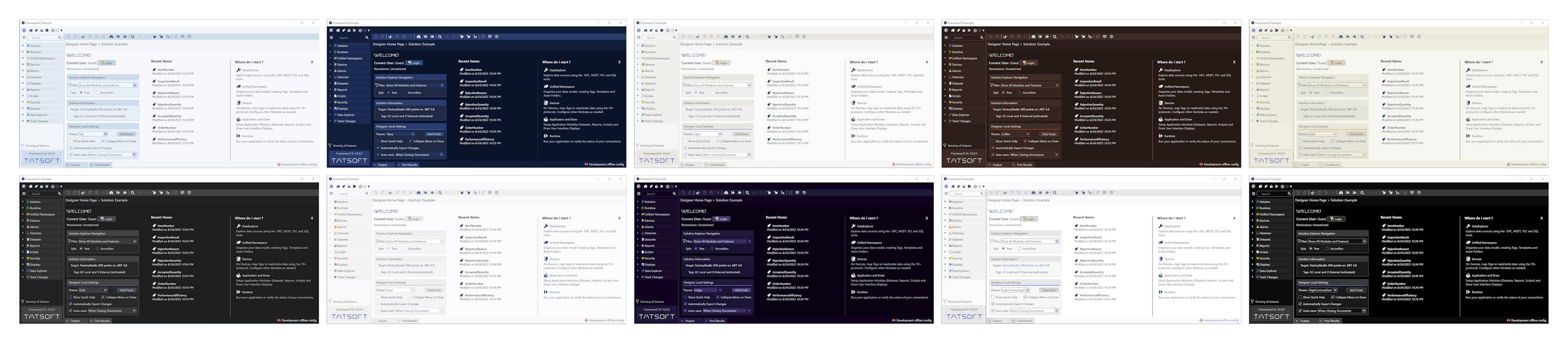
Themes
Switch visual styles without redesign
Features Highlights
- *Design Once, Deploy Everywhere* - Single configuration for all platforms
- *WebAssembly Performance* - Near-native speed in browsers
- *Unified Designer* - One tool for both HMI graphics and web dashboards
- *.NET WPF and HTML5* - Dual technology support from single design
- *Smart Symbol Library* - Extensive collection of industrial graphics, including new in 10.1.5 the TRadialGauge (radial gauge control), TKnowledgeGraph (AI knowledge graph control), and Trend Annotations on Trend Chart
- *Data Template Integration* - Automatic symbol-to-tag connections
- *Multi-Language Support* - Runtime language switching
- *Units Conversion* - Automatic metric/imperial conversion
- *Self-Aware SCADA* - Dynamic display generation from asset models
- *Multi-Frame Layouts* - Complex display compositions
- *Touch Optimization* - Gesture support for mobile devices
- AI-Assisted Creation - Generate display content and XAML using MCP for Designer
Module Substructure
The Displays module is documented across four Reference pages, one per substructure piece:
- Displays Layouts Reference - Frame regions (Header, Footer, Menu, Content) that persist across page navigation; the structural framework displays sit inside.
- Displays List Reference - The catalog of all displays in the solution; DataGrid and CardView management views.
- Displays Symbols Reference - Reusable parameterized graphical components for engineering elements.
- Displays Themes Reference - Built-in Light/Dark theme infrastructure for consistent visual styling across Designer and Runtime.
- ChatSession Control Reference - Conversational AI control for embedding chat-based interactions in displays.
- Display Connectors - Connector polylines that link two shapes or symbols on a display; endpoints follow their hosts and update on edits.
- KnowledgeGraph Control Reference - Knowledge-graph visualization control for rendering nodes, edges, and relationships from a graph data source.
- Display Legends - Text labels attached to symbols and groups that follow their host element and stay in sync with the parent's Labels column.
- Shapes Connections Reference - Shape-level connection-point configuration controlling which Rectangles, Ellipses, and Paths can serve as connector hosts.
→ Modules / User Interactions / Displays Module → Tutorials / User Interactions / Displays Module Tutorial → How-to Guides / User Interactions / Displays Module How-to Guide → Technical Reference / User Interactions / Displays Module ReferenceDisplays Module Links
Explanation - to understand concepts
Tutorials - to learn by doing
How-to Guides - to accomplish specific tasks
Reference - technical details
In this section...