


The LocalAI KnowledgeGraph Demo is the headline solution for FrameworX 10.1.5: an ISA-88 pharmaceutical plant model with an interactive Knowledge Graph, full Local AI chat panel, process schematics that drill from site down to individual units, and a server-side AI narrative that turns a temperature excursion into one sentence the next shift can read.
How-to → Examples → Architecture → LocalAI KnowledgeGraph Demo
Version 10.1.5+
Download the demo files:
- LocalAI KnowledgeGraph Demo.dbsln
- LocalAI KnowledgeGraph Demo Source.rj
- LocalAI KnowledgeGraph Demo Policy.json
What this demo gives you out of the box:
- An interactive Knowledge Graph control rendering a typed ISA-88 ontology — click any node to drill down.
- A full-page AI Chat panel that answers operator questions in plain language, grounded in live tag values.
- A Plant Overview and a Cell A schematic with Wizard symbols (pumps, motors, tanks, valves, blowers) wired to live data.
- Two drill-down detail displays for the Mixer M-101 and Reactor R-101 units.
- A continuous simulation driving a slow Mixer temperature excursion to 87.4°C, a cycling stirrer, and a reactor pressure drift.
- A server-side anomaly monitor that calls Local AI for a narrative the moment Mixer M-101 crosses the threshold.
- A one-click regenerate of the Knowledge Graph at startup — the displayed graph always matches the deployed UNS.
- Dark theme default for the operator workstation.
New in 10.1.5 — try the demo without installing Ollama
The ChatPanel now ships with an offline-simulation fallback so the demo is meaningful even on a laptop with no LLM installed. The panel exposes four large quick-prompt buttons; when the configured LLM endpoint is unreachable, clicking one of the four canned prompts returns a hardcoded llama3.1-grounded reply prefixed [Simulated Reply from Llama 3]. Typing a custom query still returns the real "LLM unavailable" error — no deception. When the LLM is reachable, every prompt (canned or typed) goes to the real model with no interception.
The four canned prompts:
- "Show me the ISA-88 hierarchy for this plant"
- "Describe the equipment in Cell A"
- "What equipment is configured in Cell A?"
- "What sensors and parameters are tracked on Mixer M-101?"
This is a demo-only convenience that bypasses the LLM dependency for evaluation. "Local AI" remains the platform capability; "FrameworX AI Chat" remains the feature delivered via the ChatRequest action. The canned-reply fallback is wired into this demo's ChatPanel specifically — it is not part of the Local AI platform behavior.
Summary
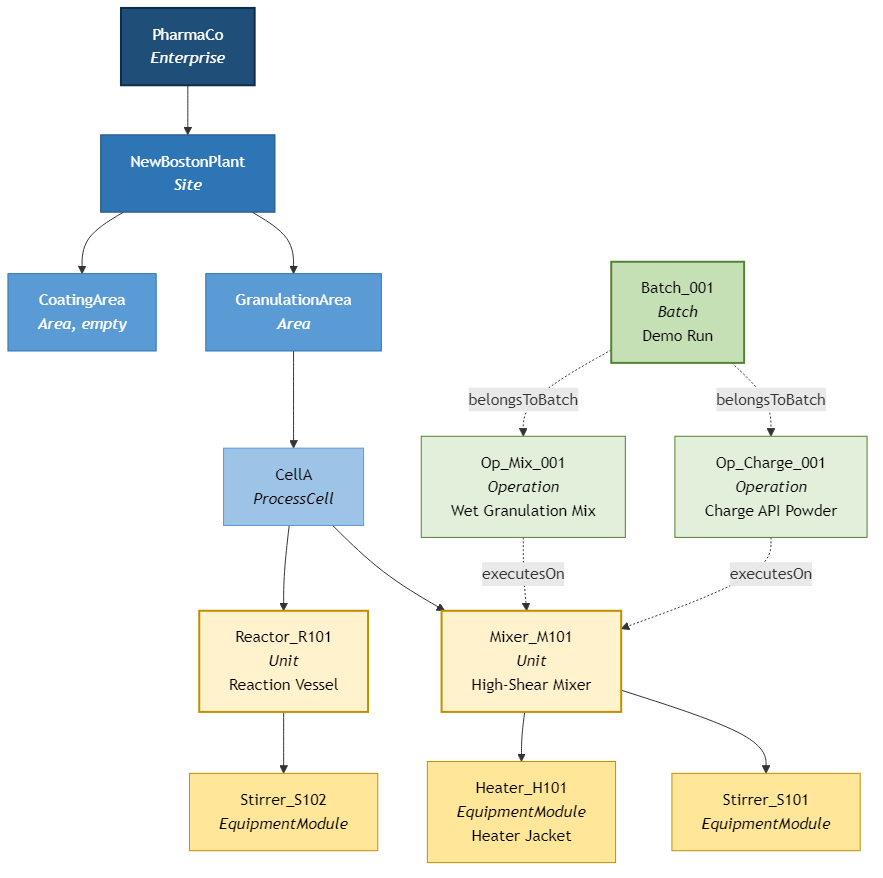
The demo is a fictional pharmaceutical plant — PharmaCo Holdings, a site in Boston MA — built to ISA-88 conventions: Enterprise contains Site, Site contains Areas, an Area contains a ProcessCell, a ProcessCell contains Units, a Unit contains EquipmentModules. The Granulation Area runs one ProcessCell (Cell A) with two flagship units: Mixer M-101 (a wet-granulation high-shear mixer with a stirrer and a heater jacket) and Reactor R-101 (the downstream reactor with a stirrer). A live Batch B-001 is executing two operations across the two units.
You open the demo, hit the Plant Overview button, click into Cell A, watch the Mixer's temperature climb, ask the AI what's going on — and the reply names the heater output, the stirrer cycling, the operation in progress, and the anomaly score. No model fine-tuning, no fixed-prompt scaffolding, no cloud round-trip.
The Demo Flow — What a User Does
The demo is built around a six-step path through the plant. Each step is a Display; each Display is reachable from the 10-icon nav cluster at the top of every screen (Home, Plant, Cell A, Mixer, Reactor, Chat, plus Theme / Web / Logon / Shutdown chrome).
1. Open the demo — MainPage (Knowledge Graph + AI Chat hero)
The landing screen is split: the left side renders the live Knowledge Graph (cytoscape-powered, see the KnowledgeGraph Control Reference) showing every UDT class and every typed tag as an interactive node-and-edge graph. The right side is the AI Chat panel, pre-warmed with example prompts. A small status pill at the top, bound to @Tag.Chat.Reply.JsonString("status"), surfaces the Local AI state immediately — ok means the model is responding; disabled or error means Ollama is not reachable. In 10.1.5 the ChatPanel's four canned quick-prompt buttons still work in that state via the offline-simulation fallback (see the callout above), so the demo is exercisable even before Ollama is installed.
2. Plant Overview — site-level dashboard for both Areas
The Plant Overview Display (new in 10.1.5) renders the full site at one glance: both Areas, each ProcessCell, and the headline KPI per unit. Mixer M-101 carries a MOTOR (stirrer) overlay on top of its TANK symbol so it reads visually distinct from the Reactor's plain TANK — you can pick out the Mixer at a glance even before reading the labels. Clicking any tank drills down to its detail display.
3. Cell A drill — CellA_Overview process schematic
The Cell A Overview is the canonical operator process schematic. The Granulation Area flow runs left-to-right: PUMP → TANK+MOTOR (Mixer M-101) → VALVE → TANK (Reactor R-101) → BLOWER. Each Wizard symbol is wired to live tag values (running state, output, current). Live KPI tiles sit above; an AI Narrative footer shows the most recent server-generated explanation of any anomaly the AnomalyMonitor surfaced. Click either tank to drill into the unit detail.
4. Unit detail — Mixer_M101_Detail and Reactor_R101_Detail
Two unit-level Displays. Each shows the unit's full operational state: temperature, pressure, speed, setpoint, running indicator, plus the AnomalyScore on Mixer M-101 and the trend pin where the score crossed threshold. The detail page is where an operator pivots from "something is off" to "here is exactly what changed and when."
5. Ask the AI — ChatPanel
The ChatPanel Display is the full-page AI chat surface. Same backing service as the MainPage chat panel; the full page gives more room for multi-turn conversation. The panel ships with four large quick-prompt buttons covering the most common demo questions (ISA-88 hierarchy, Cell A equipment narrative, equipment configuration, Mixer M-101 sensors and parameters). Each Display panel keeps its own transcript (default ON in 10.1.5), so follow-up questions retain context.
When the LLM is reachable, the canned prompts go to the real model and return grounded replies naming the Heater Jacket output, the Stirrer cycling pattern, the operation in progress (a wet-granulation mix step in Batch B-001), and the AnomalyScore reading. When the LLM is unreachable, the four canned prompts return the matching hardcoded reply (prefixed [Simulated Reply from Llama 3]) so the demo still tells a story — custom typed queries continue to surface the real "LLM unavailable" error.
6. Anomaly narrative — the server-side loop
While the operator browses, a SimulationDriver Script Task (1 s tick) walks the Mixer temperature toward 87.4 °C and cycles the stirrer. An AnomalyMonitor Script Task (5 s tick) reads the Mixer's anomaly features; when the score crosses 0.7 it calls Local AI for a two-sentence operator-facing explanation and writes it back as an AI Narrative on the asset. The narrative surfaces on the Cell A footer and pins to the trend chart at the timestamp the anomaly was detected. A shift handover three hours later still sees what happened and why.
The Ontology Layer
The plant model is not authored row by row in Designer. It is imported from a hand-crafted ISA-88 RDF/OWL ontology in one click and the entire UNS materializes in a single pass.
ISA-88 gives a clean class hierarchy out of the box: Enterprise, Site, Area, ProcessCell, Unit, EquipmentModule, plus the procedural classes Operation and Batch. The demo's LocalAI KnowledgeGraph Demo Source.rj file (~21 KB, W3C RDF/JSON) defines those eight classes, the containment predicates between them (hasSite, hasArea, hasProcessCell, and so on), and the fictional PharmaCo Holdings site populated with Batch B-001 in progress.
The importer reads the ontology and materializes the FrameworX UNS in a single pass:
- 8 UDTs — the eight ISA-88 classes (S88_Enterprise, S88_Site, S88_Area, S88_ProcessCell, S88_Unit, S88_EquipmentModule, S88_Operation, S88_Batch). Runtime envelopes for Chat reply, AI Narrative, and simulation bookkeeping use primitive tag types (Json, Text) rather than additional UDTs.
- 20 UnsTags — split by paradigm in 10.1.5: 3
/Attrenvelopes carry static ontology metadata (PharmaCo/Attr[S88_Enterprise],GranulationArea/AttrandCoatingArea/Attr[S88_Area] — Name and Description literals only, all StartValues defined); 10 naked UserType instances carry live equipment data (NewBostonPlant[S88_Site] with dynamic TotalThroughput/OEE,CellA[S88_ProcessCell] with dynamic ActiveBatch/BatchProgress,Mixer_M101andReactor_R101[S88_Unit], threeS88_EquipmentModuleinstances under them,Batch_001[S88_Batch], and twoS88_Operationinstances — all with operational members fed by the ValueSimulator); plus 6 runtime tags the Chat, Anomaly, Simulation, and asset-selection surfaces consume, and one built-in Placeholder. - 16 UnsAssetTree rows auto-created from the slashed paths. No manual folder writes.
- Reference edges populated at the second pass: the containment network plus the
executesOnandbelongsToBatchOperation links.
Dual-shape pattern (10.1.5+). The demo demonstrates the dual-shape pattern for ontology-driven UNS solutions: /Attr-suffix tags carry STATIC ontology metadata (literals with StartValue defined), naked UserType instances at <path>/<entity> carry LIVE equipment data (dynamic members fed by Devices, Scripts, or simulators). Both shapes can coexist as siblings under the same auto-created folder. Not every node has /Attr — only nodes carrying static ontology-derived properties. Conceptual containers with only Name and Description literals (Enterprise, Area) use /Attr-only; nodes with dynamic members (Site, ProcessCell, Unit, EquipmentModule, Batch, Operation) use the naked instance. See Industrial Ontology Integration How-to for the full authoring guidance, and Import an OWL/RDF ontology into your UNS for the import-time vs hand-authoring split.
Click Knowledge Graph on the Asset Tree toolbar at any time to regenerate the source the on-screen KnowledgeGraph Control Reference reads. The control re-renders without a Display reload.
Reusing the pattern
The ontology source file stays pure ISA-88, so it is portable. Take any reference ontology you already trust (your corporate asset model, a vendor template, an open standard such as ISA-95 or BFO) and import it the same way. The demo's import workflow does not depend on ISA-88 specifically.
The Operational Layer on Top of the Ontology
Pure ISA-88 defines structural classes: Enterprise, Site, Unit. It does not define the SCADA members operators read at runtime: temperature, pressure, speed, setpoint, running state, output. Those belong to the deployment, not to the standard.
The demo keeps the two layers cleanly separated. The ontology source file stays pure, free of SCADA details, so it round-trips back to RDF without leaking deployment-specific members. The operational members are added in Designer after the import, on top of the materialized UDTs:
- On
S88_Unit:Capacity_L(0–300 L),Temperature_C(0–150 °C),Pressure_bar(0–10),Speed_rpm(0–600),Setpoint(default 75 °C),Running(Digital), andAnomalyScore(0–1). - On
S88_EquipmentModule:Speed_rpm(0–600),Running(Digital),Output(0–100 %, default 50),Setpoint(0–100 %, default 50), andCurrent_A(0–30 A). - Each member carries its units, scale range, format string, and start value. Bind directly into displays without further work.
Because the operational members live on the UDTs and not on the instances, every S88_Unit instance automatically inherits Temperature, Pressure, Speed, Setpoint, Running, and AnomalyScore. The demo authored two UDTs, not 21 sets of fields.
The Display Set
13 Displays ship with the demo, organized into three tiers: operator-facing process pages, navigation/header chrome, and a layout template.
Operator process pages
- MainPage — the Knowledge Graph + AI Chat hero. Landing screen.
- PlantOverview — site-level both Areas. New in 10.1.5. Mixer carries the MOTOR overlay; Reactor is a plain TANK.
- CellA_Overview — the Granulation Area process schematic with PUMP → TANK+MOTOR → VALVE → TANK → BLOWER flow, KPI tiles, and AI Narrative footer.
- Mixer_M101_Detail — full unit detail for the Mixer.
- Reactor_R101_Detail — full unit detail for the Reactor.
- ChatPanel — full-page AI chat surface with four large quick-prompt buttons and the 10.1.5 offline-simulation fallback.
Navigation and chrome
- Header — 10-icon nav cluster used by every page: Home, Plant, Cell A, Mixer, Reactor, Chat, plus Theme / Web / Logon / Shutdown.
- NavTree — ISA-88 AssetTree, used inside the layout templates.
- HeaderMobile, HeaderPad — form-factor variants for tablet and phone clients.
- Home — Dashboard landing for the mobile/tablet form-factor; redirects to MainPage on open.
- LogOn — sign-in surface.
Templates
One layout template Display (Layouts) ships with the solution; it provides the shared layout frame for responsive-client chrome and is not part of the operator navigation path.
Wizard symbols
The CellA_Overview and PlantOverview process schematics use five Wizard symbols from the standard library: PUMP1, MOTOR1, TANK1, VALVE1, BLOWER1. Each is bound to the live tag for its modeled equipment. Editing the Wizard variant updates every instance.
Grounding the Chat in Live Plant Data
A chat panel that returns generic LLM answers is not a plant tool. The demo's chat is useful because every reply is grounded: the model receives, on every turn, the live values of the selected asset's operational members, the active alarm state, the Operation and Batch the asset is currently part of, and the AnomalyScore for the asset.
The grounding is wired once, in the script that builds the chat prompt. The chat panel passes the operator's question and the current selected asset; the script reads the asset's live values from the UNS, walks one level up to find the parent ProcessCell and its peers, looks up the active Operation and Batch, and assembles a system message that gives the model everything it needs to reply specifically. The model is OpenAI-compatible and runs locally by default.
Server-Side AI for the Anomaly Narrative
The chat panel is one consumption pattern for Local AI. Server-side AI calls from a Script Task is the other. The demo wires one server-side AI call: when the Mixer M-101 anomaly score crosses 0.7, the AnomalyMonitor Script Task asks the AI (via AI.Execute API Reference) for a two-sentence narrative and writes the reply back to the asset's narrative tag — the CellA_Overview footer reads it immediately. The narrative is extracted from the standard Local AI reply envelope (TK.Convert.JsonValue<string>(envelope, "text")) so the operator sees the human-readable sentence, not the raw JSON.
Two consequences:
- The plant page carries operator-language explanation, not just a numeric score crossing.
- The trend chart preserves that explanation in place, so a shift handover three hours later still sees what happened and why.
The AnomalyScore itself is produced by the AnomalyML Server.Class using an ML.NET model trained on historical data, following the same pattern in the BottlingLine ML Demo. The chat and the narrative script both read the score from the same tag: one model, two consumption surfaces.
Two consumption surfaces, one config
The Display chat panel and the server-side script call share one SolutionCapabilities[LocalAI] configuration and one SolutionSettings.ModelOptions bitmask. Swap to a different endpoint or a different model in one place; both consumption patterns follow. The ChatPanel's offline-simulation fallback (above) is wired into the demo's Display logic and does not affect the server-side AI.Execute path.
The Solution's Seven Script Tasks
The demo runs seven Script Tasks. Together they seed the runtime state at startup, warm up the AI endpoint, drive the simulation forward, watch for the anomaly, and tear down cleanly on shutdown.
Task | Tick | Role |
|---|---|---|
ServerStartup | once | Seeds Mixer/Reactor live state, the Cell A KPI tags, the Chat reply envelope, the AI Narrative idle string, and regenerates the Knowledge Graph source so the on-screen control matches the deployed UNS at first paint. |
WarmupAI | once | Issues a one-shot |
SimulationDriver | 1 s | Walks the Mixer temperature toward 87.4 °C, cycles the stirrer, applies a slow Reactor pressure drift, and drives all sub-equipment (Stirrer S-101, Heater H-101, Stirrer S-102) Speed_rpm / Output / Current_A so detail views always show live motion. |
AnomalyMonitor | 5 s | Computes the Mixer M-101 anomaly score via the AnomalyML class. When the score crosses 0.7, calls Local AI for a narrative, parses the reply envelope ( |
ClientStartup | per-client | Sets the Dark theme as the operator workstation default. |
ClientShutdown | per-client | Clean per-client teardown. |
ServerShutdown | once | Resets simulation state for the next run. |
Three Script Classes ship: AnomalyML (the ML.NET anomaly model wrapper, called by AnomalyMonitor) plus ClientMain and ServerMain (default class shells reserved for future grounding-prompt assembly and simulation utilities).
How to Run It
Recommended default and limited-hardware fallback
FrameworX recommends qwen2.5:7b-instruct (~4.7 GB, Apache 2.0) as the default — best reasoning and tool-call reliability; it expects a GPU. This demo ships configured for qwen2.5:7b-instruct — the recommended default. On a no-GPU machine, switch the Name field on SolutionCapabilities[LocalAI].Settings to qwen2.5:3b-instruct (~2 GB), the limited-hardware fallback, so the AI features run end-to-end on CPU for evaluation. The install steps below use whichever model the demo currently references.
Want to skip the Ollama install for a first look?
Open the solution under the Development profile without installing Ollama and head straight to the ChatPanel. The four quick-prompt buttons return their canned llama3.1-grounded replies (prefixed [Simulated Reply from Llama 3]) so you can walk through the demo narrative immediately. To enable real LLM replies for custom prompts — and to use the AnomalyMonitor's server-side AI narrative — complete the three steps below.
The demo ships with the full UNS populated, the displays wired, and the AnomalyMonitor in place. Three steps to a live session:
- Enable Local AI for the solution. In Designer, open Solution → Capabilities and tick the Local AI — Enabled checkbox. This sets
SolutionCapabilities[LocalAI].Enabled = true, the canonical master kill-switch that both the chat panel ChatRequest action and the AnomalyMonitor'sT.Toolkit.LocalAI.AI.Executecall consult before issuing any LLM traffic. Until this box is ticked, every Local AI call short-circuits withstatus = "disabled"and the MainPage status pill reads disabled. - Install Ollama and pull the model. Run the install helper that ships with FrameworX:
AISetup\Install-LocalAI.ps1. It checks for Ollama, installs viawingetif missing, and pulls the default model (qwen2.5:7b-instruct, ~4.7 GB). If your demo solution referencesqwen2.5:3b-instructinstead, also runollama pull qwen2.5:3b-instruct(~2 GB) so the demo's configured model is available locally. The script then runs a smoke test againsthttp://localhost:11434/v1/chat/completions. ~5 minutes on first run; idempotent on later runs. Full reference: Local AI - First Install Walkthrough. - Open the solution under the Development profile. The MainPage opens with the Knowledge Graph on the left and the Chat panel on the right. Pick a prompt; the reply lands in ~500 ms once the model is warm (WarmupAI primes the endpoint on Server.Startup, so the first operator turn is already hot). Click Plant in the header, then Cell A, then either tank for the detail page. Watch the Mixer temperature climb; within a minute or two the AnomalyMonitor crosses threshold and the Cell A footer fills with the AI's narrative.
To customize the ontology for a different plant or equipment hierarchy, replace LocalAI KnowledgeGraph Demo Source.rj with your own RDF/JSON file and re-import. The displays, the AnomalyMonitor, and the chat prompts work against any UDT that exposes the same operational members.
Reference
Key facts about the demo solution:
- Target framework: .NET Framework 4.8 / .NET 10 (both supported in 10.1.5).
- Layout template: Wide.
- Source ontology:
LocalAI KnowledgeGraph Demo Source.rj(21 KB, W3C RDF/JSON). - Import policy:
LocalAI KnowledgeGraph Demo Policy.json(one override,namedIndividualThreshold: 0, to keep typed individuals as tags rather than enumerations). - UDTs: 8 — the eight ISA-88 classes (S88_Enterprise, S88_Site, S88_Area, S88_ProcessCell, S88_Unit, S88_EquipmentModule, S88_Operation, S88_Batch).
- UnsTags: 20 — 3
/Attrenvelopes (static ontology metadata on the Enterprise and two Areas) + 10 naked UserType instances (Site, ProcessCell, two Units, three EquipmentModules, Batch, two Operations — live equipment and state) + 6 runtime tags (Chat, Anomaly, Simulation, asset selection) + 1 built-in Placeholder. - UnsAssetTree: 16 folders auto-created from the containment paths.
- Displays: 13 — 6 operator pages, 5 chrome/navigation, 1 sign-in, 1 layout template.
- ScriptsTasks: 7 — ServerStartup, WarmupAI, SimulationDriver, AnomalyMonitor, ClientStartup, ClientShutdown, ServerShutdown.
- ScriptsClasses: 3 — AnomalyML (ML.NET anomaly wrapper) plus ClientMain and ServerMain (default class shells).
- DisplaysSymbols: 5 Wizard symbols — PUMP1, MOTOR1, TANK1, VALVE1, BLOWER1.
- ChatPanel: 4 quick-prompt buttons + offline-simulation fallback (new in 10.1.5) — the canned-reply path is demo-specific Display logic, not a Local AI platform behavior.
- Local AI master switch:
SolutionCapabilities[LocalAI].Enabled. Default OFF on a fresh install — tick the box in Solution → Capabilities to enable. - LLM endpoint: configurable via
SolutionCapabilities[LocalAI].Settings. Recommended default model:qwen2.5:7b-instruct(~4.7 GB, expects a GPU). This demo ships configured forqwen2.5:7b-instruct; on a no-GPU machine switch theNamefield toqwen2.5:3b-instruct(~2 GB), the limited-hardware fallback, so it runs end-to-end on CPU for evaluation. Any OpenAI-compatible endpoint works. - Cloud dependency in the inference path: none. After the local LLM is installed, every chat call and every narrative call stays on the plant network.
Related
- Local AI. The Local AI capability landing — configuration, ChatRequest action, server-side AI.Execute, gate semantics.
- Local AI - First Install Walkthrough. The Install-LocalAI.ps1 helper that pulls Ollama and the model.
- KnowledgeGraph Control Reference. The portable Display control that renders the on-screen ontology graph.
- AI.Execute API Reference. The canonical
T.Toolkit.LocalAI.AI.Executescript API used by the AnomalyMonitor. - AI Integration. Parent page covering all AI surfaces in FrameworX.
- Industrial Ontology Integration How-to. Full reference for the ontology import / export pipeline.
- Import an OWL/RDF ontology into your UNS. Wizard and MCP reference for the import step.
- Export your UNS to RDF/OWL/GraphDB. Export format selector and round-trip guarantees.
- Generate a visual report of your UNS. Knowledge Graph button reference.
- BottlingLine ML Demo. Companion demo for the ML.NET anomaly-detection pattern used for AnomalyScore.
In this section...