


Clients compatible with OPC UA specification
- Name: OPCUA
- Version 1.0.0.0
- Protocol: OPC UA
- Interface: TCP/IP
- Runtime: Multiplatform
- Configuration:
- Runtime / Startup
Overview
The Software Platform has the built-in ability to act as a OPC-UA Server. This feature is enabled just by starting the OPC UA Server module, when running a solution.
The OPC UA Server configuration sets up the server settings and secure communication parameters for OPC UA clients. It involves defining endpoints (addresses and ports), managing security policies, and handling certificates to ensure seamless and reliable data exchange. Users can adjust settings in the user interface to tailor the server’s behavior, control security, and establish the requirements for OPC UA clients to connect.
Data Elements, OPC Items
The OPC UA server automatically presents the tags defined in the solution to be accessible as OPC items from remote clients.
Not all tags will be visible. When building the tree for its data elements, the Visibility Property of the tags is verified.
The available options are:
- Private: The tag remains visible only to the local solution and its redundant pair. Use this setting to restrict the tag's visibility, ensuring that only the local solution and its backup can access the tag. Private Tags are not included in the OPC Server tree.
- Protected: The tag becomes visible to external connections for read-only operations. This setting allows external systems to read the tag's value without permitting any modifications, ensuring that the data remains unchanged. Protected Tags are included in the OPC tree, but only for read operations.
- Public: The tag becomes visible to external connections for both reading and writing. This setting provides full access to the tag, allowing external systems to both read and modify the tag's value. Public Tags are included in the OPC tree, allowing both read and write operations.
To make the configured tags visible to the OPC Server, simply change the visibility property:
- Public: Can be read or written from OPC clients.
- Protected: Can only be read by the OPC clients.
- Private: Cannot be seen, nor read, by OPC clients
OPC UA Server Configuration
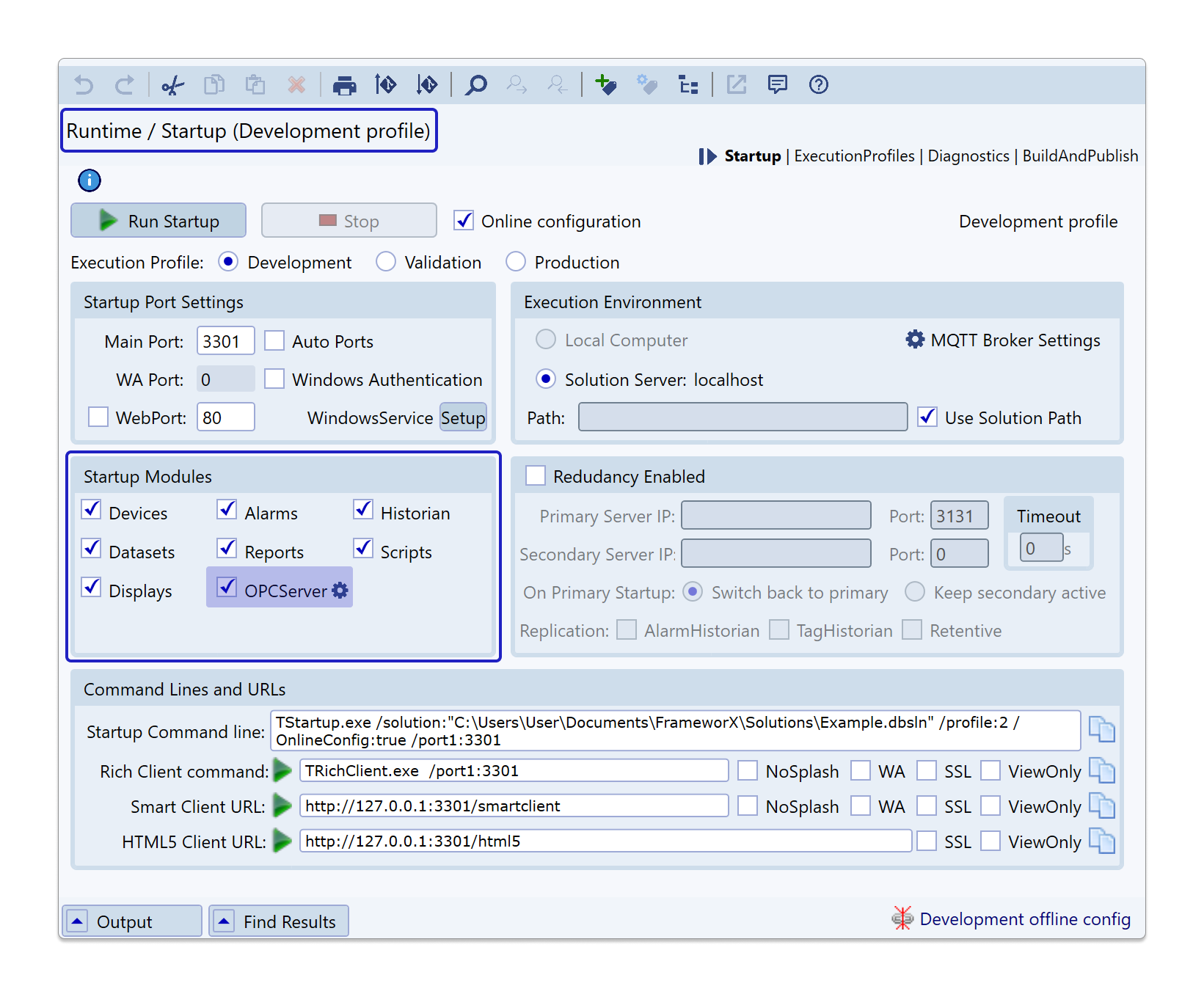
In the Engineering Environment, go to the Runtime → Startup page and look for the OPC Server configuration. Select the OPC UA, and click on icon to configure.
An OPC Server configuration dialog will open that will request admin privileges. In the configuration manager, we can configure Endpoint characteristics for the server, manage Client certificates, and create a certificate for the Server.
About OPC DA Server
OPC DA Server is deprecated and kept only for compatibility purposes. If you still need to setup a OPC DA Server refer to this documentation:
Endpoints
In this tab, you can define the endpoints for the OPC Server deployment, select security policies, and manage anonymous user login.
Clicking on the Add or Edit buttons will open a popup that allows the user to select the IP address and port number. It is also possible to define the IP for a specific network adapter that is available in the system. This can guarantee some security for your OPC, such as making it inaccessible to anyone outside of your network.
It is important to ensure the defined ports are not blocked by the OS firewall.
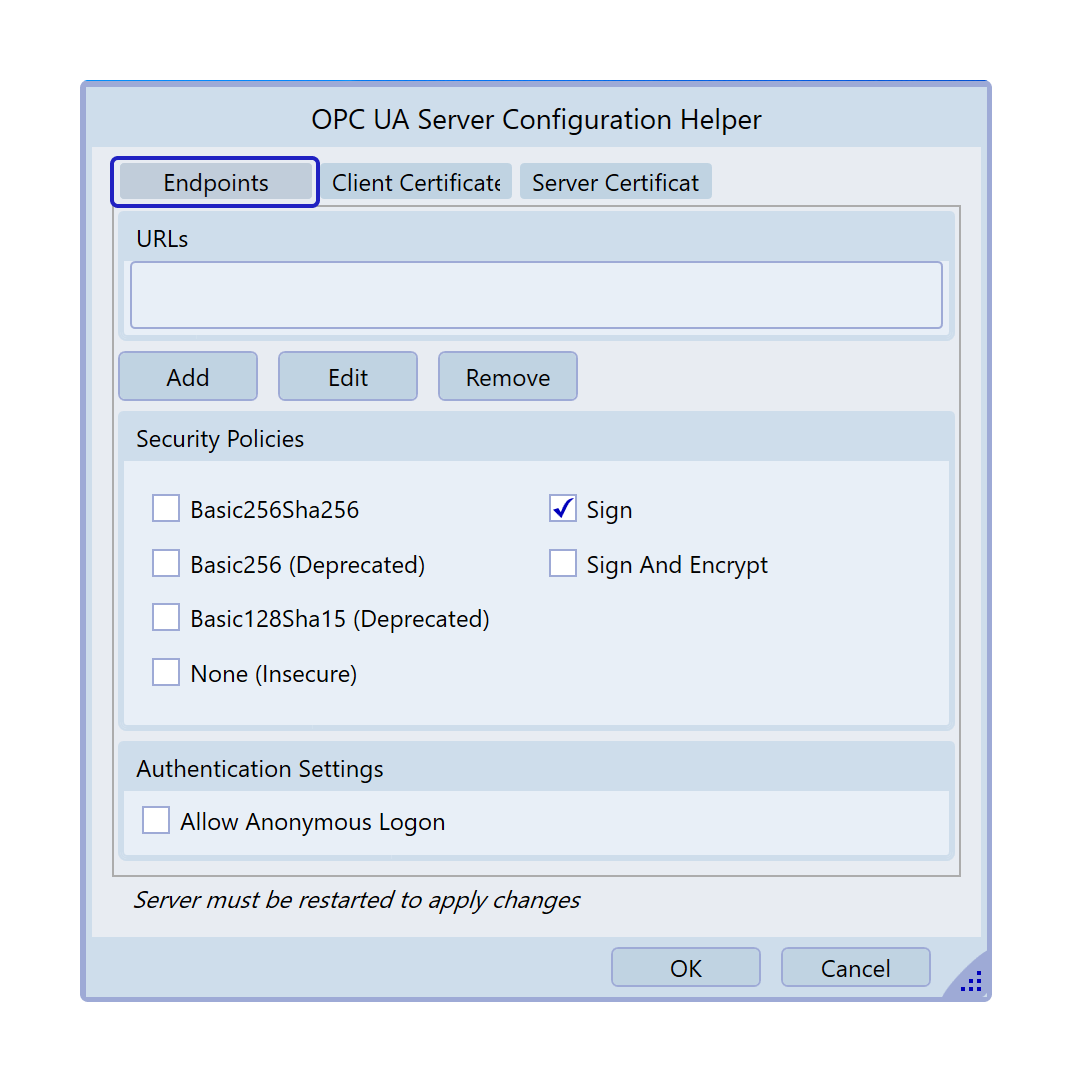
The OPC Server's user management is done by the Solution's Security Module. The existing Users and Runtime Users, and their associated passwords, can be used to allow client connection.
Client Certificates
In this tab, you can import Client Certificates and choose to Trust or Reject them.
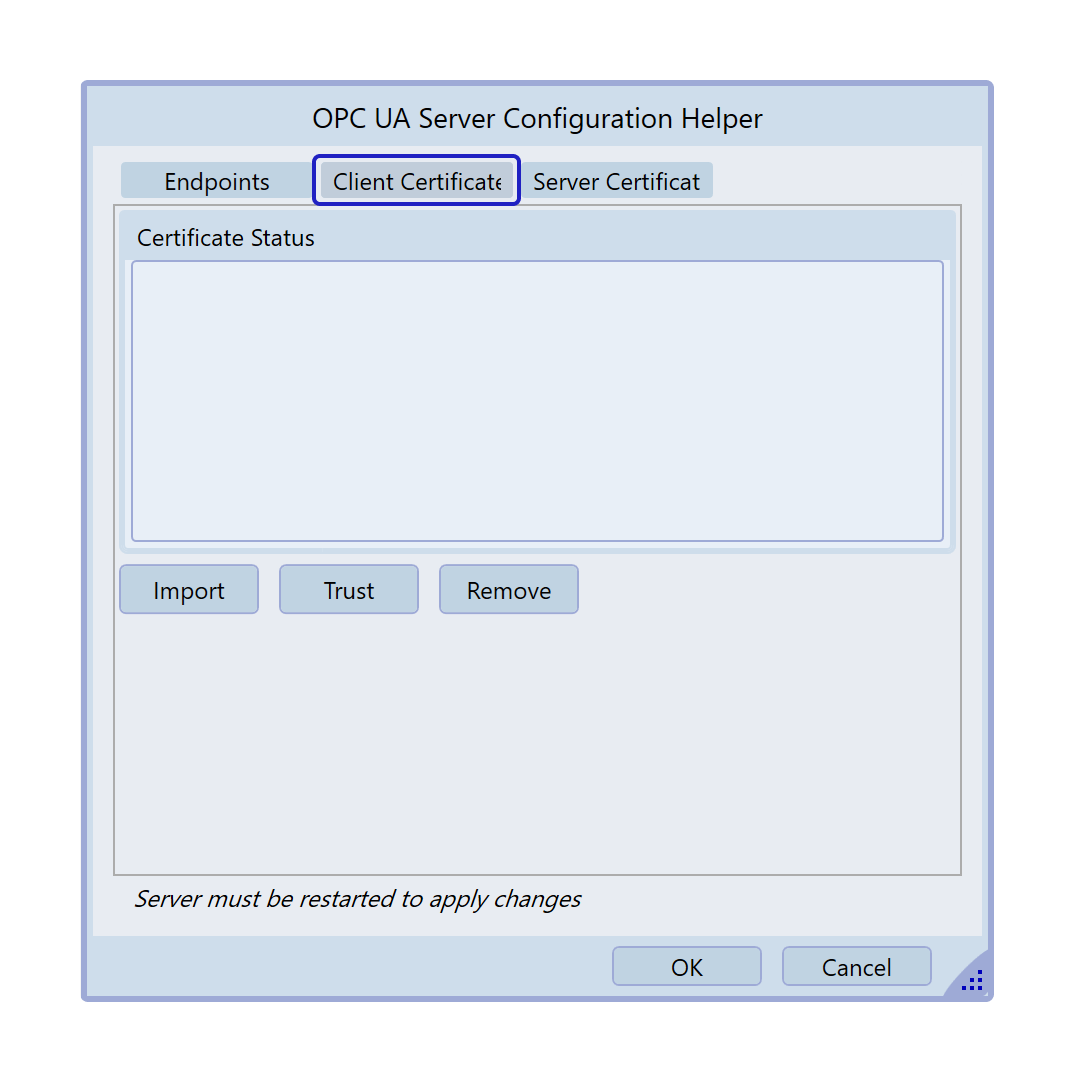
The list will display all Clients Certificates that were imported and their current trust status.
Remote Client Certificate Workflow
When a remote OPC UA client attempts its first secure connection to the server, the workflow is end-to-end as follows:
- The client opens a secure channel to the configured endpoint and presents its application instance certificate as part of the OPC UA handshake.
- The server receives the certificate, verifies the signature, and — if the certificate is not yet in the trusted store — rejects the connection and adds the certificate to the Untrusted tab of the Client Certificates list. The rejected client will retry per its own reconnect policy.
- The administrator opens the Client Certificates tab of the OPC Server configuration helper, selects the new entry under Untrusted, and clicks Trust. The certificate moves to the Trusted tab.
- On the client’s next reconnect attempt (or after a manual reconnect), the secure channel is accepted and the session establishes normally.
No restart of the OPC Server module is required between steps 3 and 4 — trust changes take effect on the next handshake. The same workflow applies to certificate renewal: a renewed client certificate appears as a fresh Untrusted entry until the administrator trusts it.
Private tag visibility
The Private visibility level continues to hide a tag from every OPC UA client, including locally trusted ones. Tags with Private visibility are never enumerated in the OPC Server address space and cannot be read or written through this connector. To expose a tag to OPC clients, switch its Visibility property to Protected (read-only) or Public (read/write).
Server Certificate
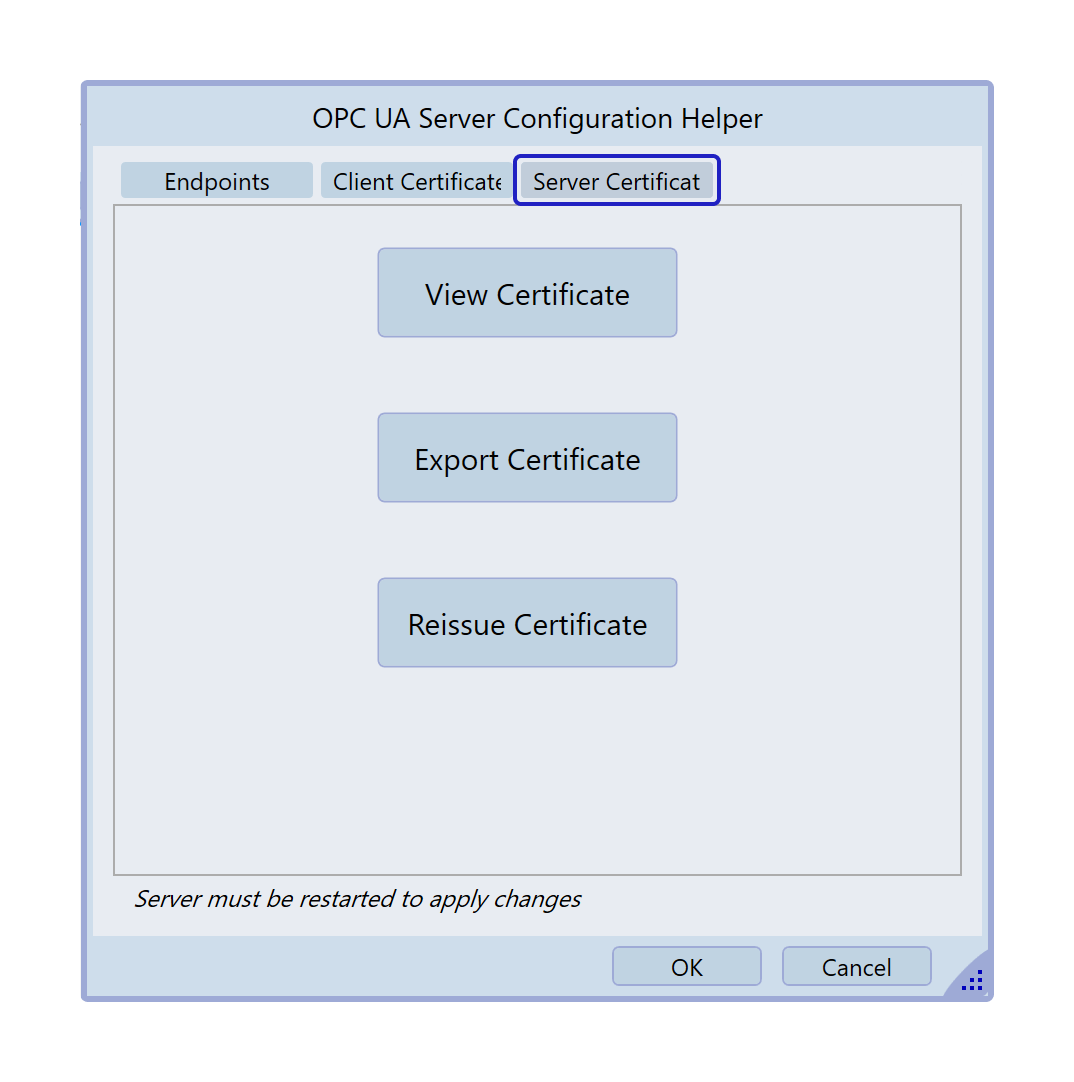
In this tab, you can view the details of the Server Certificate, export the file (to import and trust the OPC Client), and Reissue it.
When the Reissue option is selected, all existing trust relationships that depended on the Server Certificate will be invalidated.
Solution Runtime
Once all the configurations are done, you can launch the Solution to test the communication exchange. Remember to have the OPC Server Module enabled in Runtime → Startup.
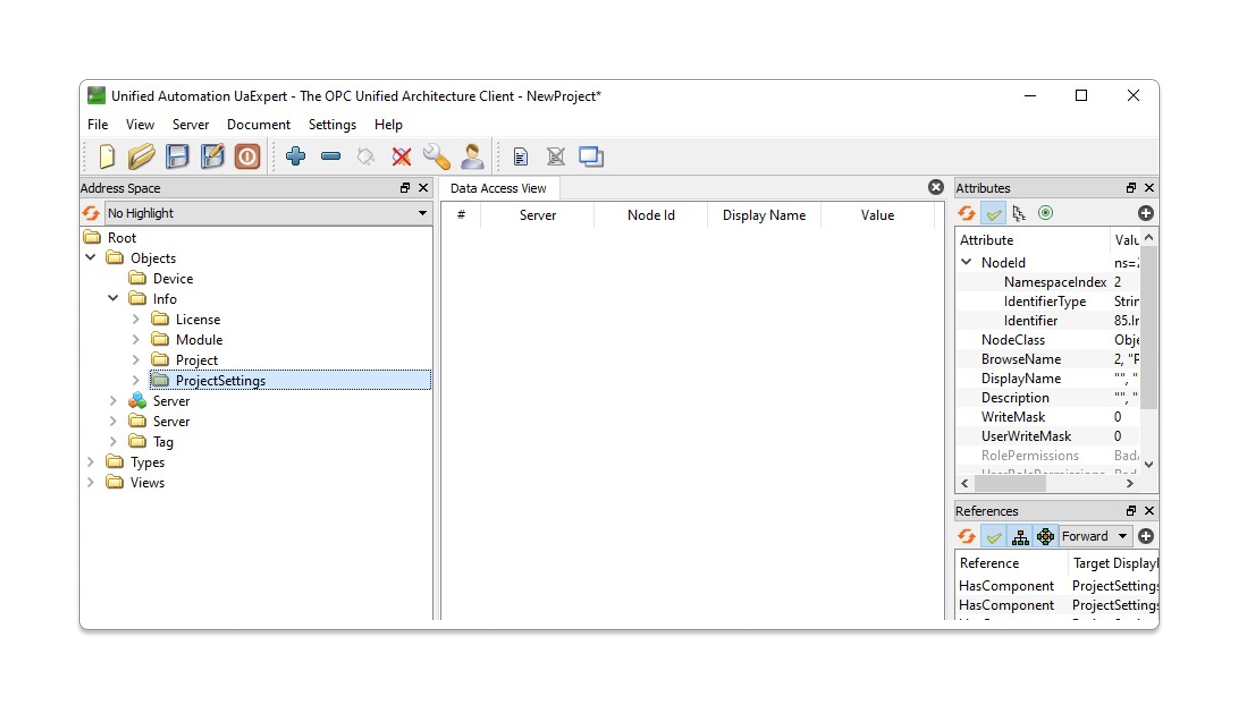
Open your OPC Client of choice (that is trusted by the OPC Server) and connect to the Endpoint defined to it. If all your configuration was done correctly, you should see the following Folders in the Server Address Space:
- Tag: Contains the Solution Tags with properties based on the Visibility (defined in Unified Namespace → Tags).
- Public: Can be read and write in your OPC
- Protected: Can only be read
- Private: will not be seen or browsed.
- Device: Information of the existing communication Nodes [Read-Only].
- Info: Contains the following subfolders:
- License: Details on the current license applied to the Solution Server [Read-Only].
- Module: Details on every Module of the Product (Alarms, Scripts, Report, etc) [Read-Only].
- Project: Solution information available at Solution Designer Home Page [Read-Only].
- ProjectSettings: Solution information available at Solution → Settings [Read-Only].
- Server: Information available at the Server Namespace (ComputerIP, PrimaryIP, IsRedundancyEnabled, etc) [Read-Only].
Troubleshooting
Server status can be monitored using the following Diagnostic tools:
- Trace Window: Enable the OPC Server and Debug CheckBoxes (in the settings menu) to visualize all information about this Module.
- Module Information: The following data should be visible here:
- State: Whether the Server is running, paused or stopped state.
- Available Items: Amount of variables in the Address Namespace.
- Last Error: Last error message that happened in the connection.
- Last Error Timestamp: Timestamp when the last error happened.
- OPC Clients Connected: Amount of clients connected to the Server.
- OPC Client: Individual information for each client connected (Name, Identity and Connection Time).
Driver Revision History
OPCUA Server Revision History | |
|---|---|
Version | Notes |
1.0.0.1 | 10.1.5 release. Clarified Private Tag Visibility behavior (Private tags are never enumerated in the OPC Server address space). Documented the end-to-end Remote Client Certificate Workflow: first secure-channel handshake rejects an unknown client certificate into the Untrusted tab; administrator clicks Trust; the next client reconnect establishes normally without restarting the OPC Server module. |
1.0.0.0 | Initial release on new documentation standards. |
In this section...