


OSIsoft PI System Historian & OSIsoft AF servers
- Name: PI
- Version: 1.0.0.6
- Protocol: Proprietary
- Interface: TCP/IP
- Runtime: .NET 4.8 (Windows)
- Configuration:
- Devices / Protocols
Overview
The OSIsoft PI System protocol enables seamless integration with your solution, allowing it to function as a historian provider without requiring additional historian configuration. When a tag is mapped to a PI point, the system automatically retrieves data directly from the PI Server for use in trend charts, scripts, or any display requiring historical information.
Your solution can simultaneously use both the built-in historian and the PI System. When historical data is requested, the system first checks the built-in historian module. If the requested information is unavailable, it automatically queries the PI Server.
| Communication Driver Information | |
|---|---|
Driver name | Osysoft PI System and AF |
Assembly Name | T.ProtocolDriver.PI |
Assembly Version | 1.0.0.6 |
Available for Linux | False |
Protocol interface | Proprietary over TCP/IP |
Requirements | Ethernet port |
Channel Configuration
Protocol Options
When writing to AF:
- Default: default configuration, does not includes the Tag's timestamp when writing to the PI Server
- Write to PI Point: Includes the Tag's timestamp when writing to the PI Server
Node Configuration
Primary Station
Station syntax: <IP >;<ServerType>;<PI Server Name>;<AF Database>;<User Name>;<Password>;<Domain>;<DataPipe>;<Impersonate>
Where :
- <IP> = IP address of the PI Server in the network.
- <ServerType> = The type of the Server you wish to connect to. Could be either a PI Server ou a AF Server.
- <PI Server Name> = The connected server.
- <AF Database> = Name of the AF DataBase being connected to (usable only if the ServerType configuration was set to AF Server).
- <User Name> = User name to do the authentication.
- <Password> = Password to do the authentication.
- <Domain> = Domain to do the authentication.
- <DataPipe> = If uses DataPipe for reading, this reading is based on events.
- <Impersonate> = Use impersonate to authenticate, usually used when it is cross-domain authentication.
Station Example
PrimaryStation = 127.0.0.1;AF;WIN-PSMAPEDPEJR;Database1;user1;password1;domain1;true;false
DataPipe
This option can be true only for ServerType = AF Server. When PI Server should be false.
Impersonate
This configuration is valid for both PI Server and AF Server.
Points Configuration
Address
To configure it, go to Devices/Points and click on the Address column to edit.
Point syntax: <Address>
<Address> indicates the Tag's address inside the PI Server which is being accessed by the PI Point.
After creating the communication point, you can use either the "Browse AF tree" or the "Browse PI tags" to open the PI points/AF search dialogs and directly select the desired tag inside the PI server to map to the Communication Point, as can be seen here: 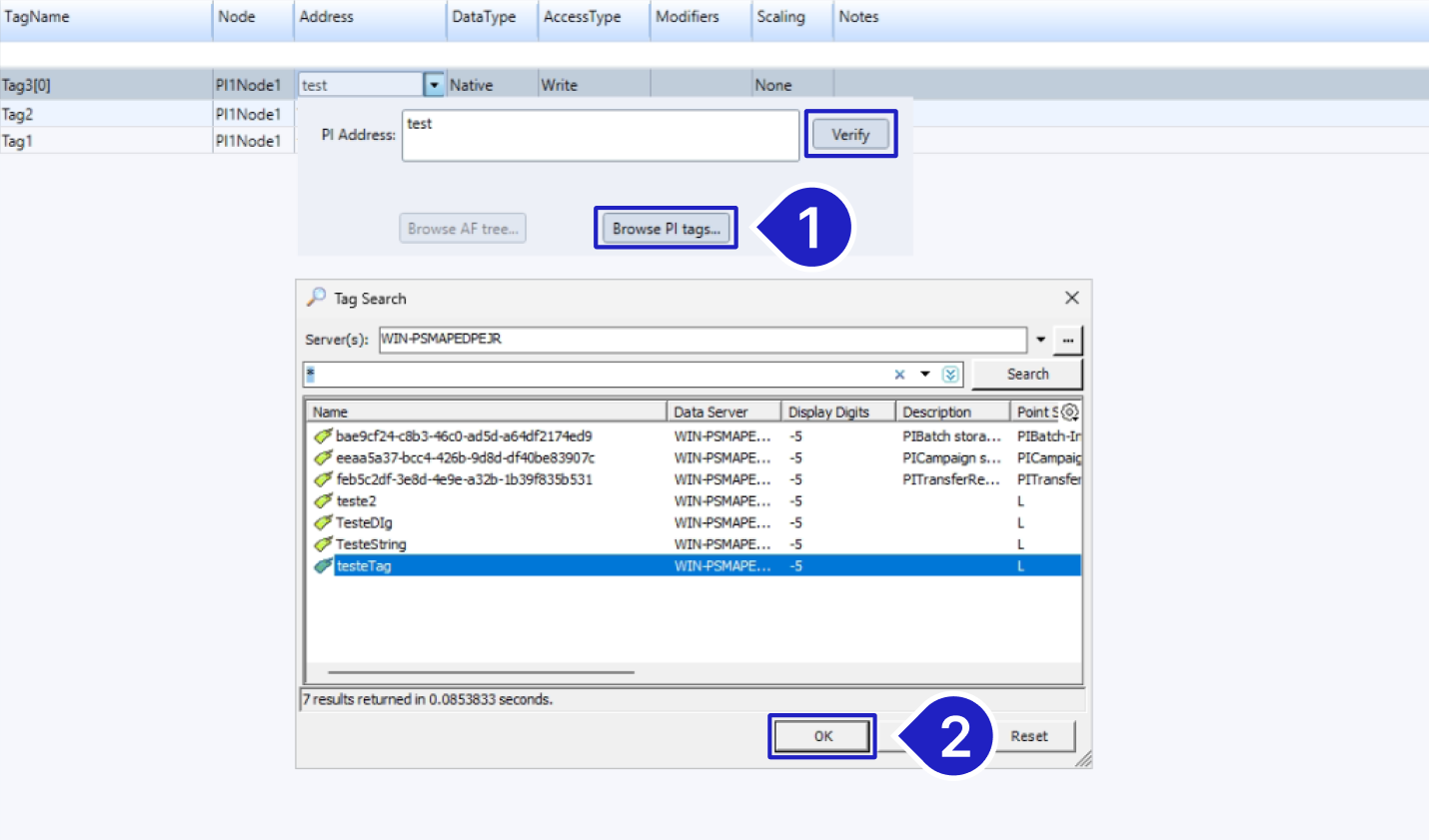
After setting the communication point up, you can click on the Verify button to check what value is being read in the specified address.
Troubleshoot
- Visit the Diagnostic Tools page for information about the tools.
- If there are connection failures with the PI Server (especially when the error indicates insufficient privileges), the root cause may be related to the environment’s security settings. In these cases, review the configuration in PI System Management Tools (SMT), mainly under Security > Mapping and Trust (Trusts), ensuring that the computer/user being used is properly mapped as trusted and has the required permissions. If needed, contact the PI Server administrator to add your machine to the trusted computers list and to review other related security settings.
Driver Revision History
Version | Notes | Updated |
|---|---|---|
1.0.0.6 | Initial release published according to new documentation standards. | July, 2024 |
In this section...