


Version 10.1.5+. The Visual Query Builder is now embedded inside the Data Explorer workspace. The 10.1.4 standalone-window behavior is described further down on this page and remains accurate for 10.1.4 deployments.
What is new in 10.1.5
Embedded inside Data Explorer. The Visual Query Builder lives as a sub-tab of Data Explorer / SQL Queries, alongside Query Execution. No separate window.
Auto-populated schema (with a current limitation). Click the Visual Query Builder sub-tab and the schema tree fills automatically from the Dataset DB selected in the parent SQL Queries page. No Connect dialog, no provider picker, no second connection string to maintain. Known Issue: in the current 10.1.5 build the schema tree returns a hardcoded sample (Customers, Orders, Products) rather than the live schema of the selected Dataset DB. Tracked under the Known Issues section below and on the 10.1.5 release update notes.
One connection, not two. The 10.1.4 builder asked for its own database connection separate from the Designer’s Dataset DBs. In 10.1.5 the Visual Query Builder reads metadata through FrameworX’s own data-access layer, so the DB you already configured in Datasets / DBs is the only place a connection is defined.
Theme-aware chrome. Visual Query Builder colors follow the active Designer theme — Light, Dark, and the rest of the FrameworX theme palette — rather than carrying a fixed look.
Live SQL preview. The generated SQL appears in a read-only text pane below the visual canvas. Same real-time behavior as 10.1.4, laid out vertically inside the embedded tab.
How to open it in 10.1.5
Open the Designer on your solution.
Navigate to Data Explorer / SQL Queries.
Pick the Dataset DB you want to query in the Selected Database area at the top of the page.
Click the Visual Query Builder sub-tab.
The schema tree on the left populates with the tables and columns of the selected Dataset DB (subject to the Known Issue noted above). Drag tables onto the canvas, draw joins between them, and the generated SQL updates live in the read-only pane underneath.
Known Issues in 10.1.5
Schema tree returns a hardcoded sample. Clicking the Visual Query Builder sub-tab currently populates the schema tree with a hardcoded sample (Customers, Orders, Products) rather than discovering the live schema of the selected Dataset DB. Live per-Dataset-DB schema discovery using the FrameworX Ado API is planned for 10.1.5b. See the 10.1.5 release update notes (Known Issues table) for current status.
Behavioral changes from 10.1.4
Aspect | 10.1.4 | 10.1.5+ |
|---|---|---|
Where it runs | Separate window, opened by a button on Datasets / DBs | Embedded sub-tab of Data Explorer / SQL Queries |
Database connection | Visual Query Builder maintains its own connection string and provider picker | Reads metadata from the Dataset DB already configured in the solution |
Initial action | Click Connect, choose provider, enter data source path | Click the sub-tab; schema appears automatically |
Theme | Fixed look, independent of Designer theme | Follows the active Designer theme |
SQL output | Generated SQL inside the Visual Query Builder window | Read-only SQL preview pane below the canvas in the embedded tab |
The visual canvas, column grid (Visible, Expression, Column Name, Sort Type, Sort Order, Aggregate, Grouping, Criteria, Or), and join semantics are unchanged from 10.1.4 — if you know the older Visual Query Builder, the working surface is the same. Tag-substitution patterns (Client tags inside SQLStatement and WhereCondition) also continue to work as documented below.
The Visual Query Builder enables you to preview, connect, build, and test your SQL queries before incorporating them into your project.
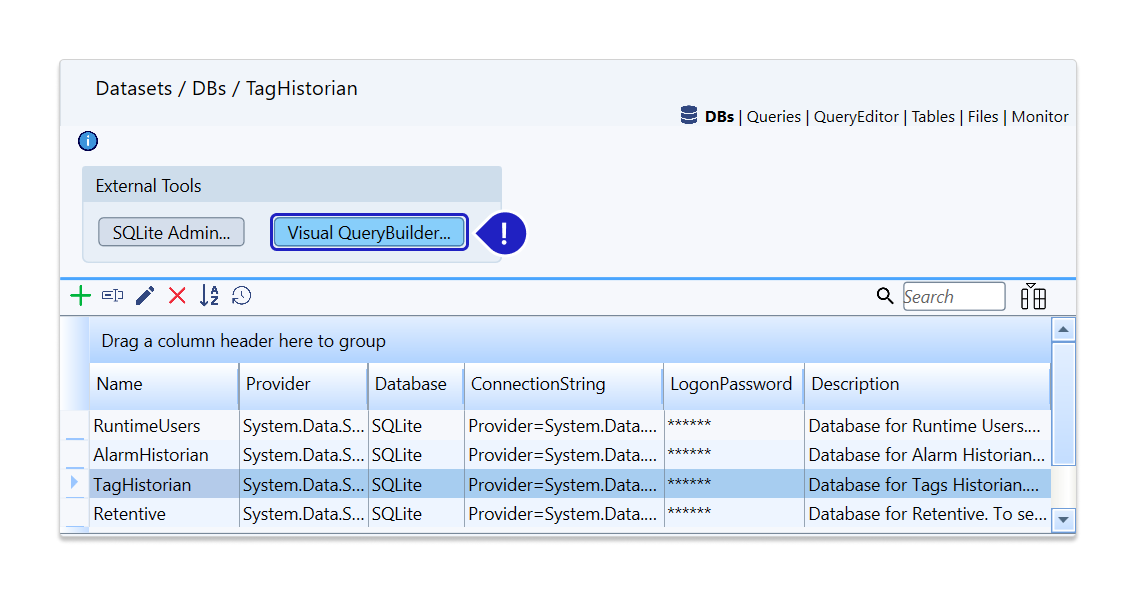
In 10.1.4 the Visual Query Builder runs as an independent tool in its own window, accessible from the page Datasets / DBs. In 10.1.5+ it is embedded inside Data Explorer / SQL Queries (see above).
Feature Highlights
Seamlessly connect, build, and test queries using a visual interface within the same design environment.
Visually select databases, tables, and columns for easy navigation and understanding.
Create relationships (joins) between entities using a visual approach.
Every visual item and action automatically generates the SQL query in real-time.
Test your query within the Visual Query Builder to ensure you obtain the desired data before integrating the query into your project.
Once everything works according to your requirements, simply copy and paste the new query wherever needed. You can be confident that it will function as intended because it has already been tested.
Using the Queries on the Dataset Module
Several different query languages can be used to perform a range of simple to complex database queries.
Most database administrators are familiar with SQL since it is the most well-known and widely used query language.
A query can be executed in a solution through a couple different locations. Below you will find them listed with a short description.
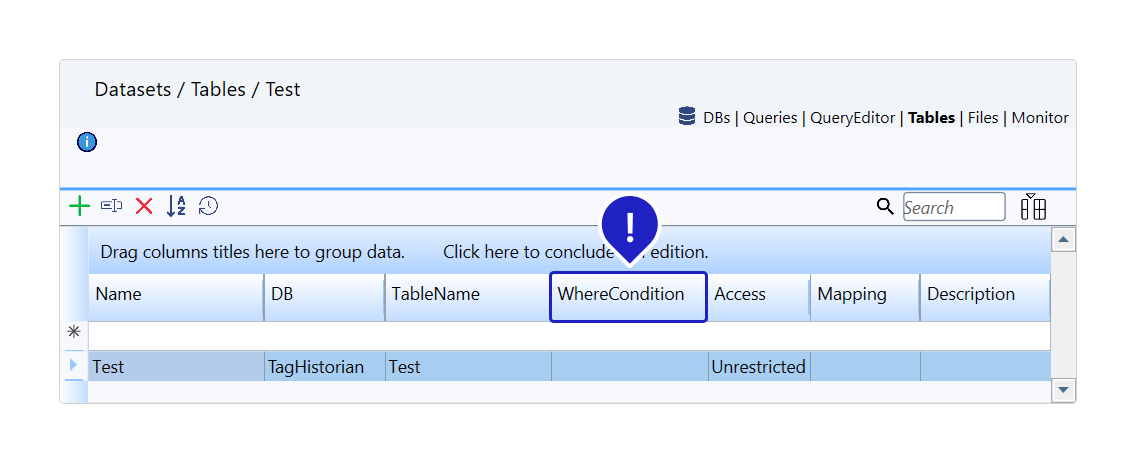
Location 1: WhereCondition for DatasetTables
The first location you can use is the WhereCondition. In this case, the data query will be performed in a table, created at Datasets → Tables. Since the table is already selected, you only need to supply the conditional. You must also run SelectCommand to update the query.
Location 2: Set the SqlStatement on Scripts
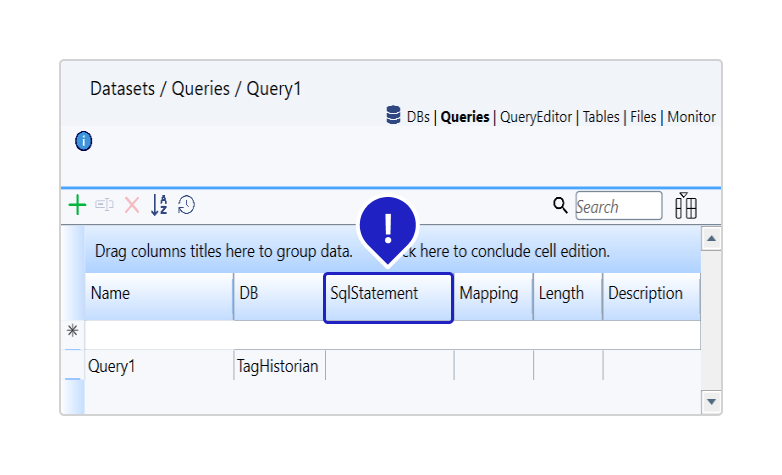
The second location uses a query, created at Datasets / Queries and linked to a provider, and sets its contents
To execute the query, you need to select one of the tables from the database and the condition that you want to filter the data. You need to run SelectCommand to update the query.
@Dataset.Query.Query1.SqlStatement = "select ? from Table1 where UTCTimestampTicks>=" + StartTime.UtcTicks + "and UTCTimestampTicks<=" + EndTime.Utc Ticks + "";
@Tag.TableTag = @Dataset.Query.Query1.SelectCommand();
Location 3: SqlStatement on Dataset Queries
Instead of writing it in a task/class or CodeBehind, it can be placed directly into Datasets → Queries → SqlStatement Column, using the Build-in SQL Editor
Customizing the Query with Tag Properties
You can customize your query in the database through the SQLStatement, which is a property of the Query, and the WhereCondition, which is the property of the Table of the Dataset.
They are properties of type Server, so if you modify this property via Script, either on the server or on the clients, the property value will be synchronized between all clients.
However, we created the possibility for the user to configure Client Tags in the configuration of these properties. For example:
String1: Select * from {tagTable} where {tagWhereCondition}
Where "tagTable" and "tagWhereCondition" are Client tags.
Note that String1 will always be the same, and will not be modified in the scripts. What will change is the tags of type Client. When we execute the SelectCommand or SelectCommandWithStatus methods, we resolve these tags in the client's context, passing to the server to correct the right query. Multiple clients can use the same query or table without conflict. Although, they will still be entering the same execution queue on the server (this does not mean multi-threading).
To summarize, you could even just put a { tagSQLStatementClient } in the SQLStatement, and the content of the query would be what was in that tag, specific to each client. It is important to remember that, in this case, it makes no sense to use the Select and Next properties, as they are only for server execution.
How to Use the Visual Query Builder
In order to edit the queries, you can use the built-in SQL query editor, which assists with syntax formatting.
But, in some cases, it would be useful to create a query visually, dragging and dropping connections among the tables. That is the purpose of the Visual Query Builder.
In 10.1.4 it runs in its own window, activated from the Datasets / DBs page. In 10.1.5+ it is embedded as a sub-tab of Data Explorer / SQL Queries.
Loading Data (10.1.4 standalone window)
Before beginning, you need to make sure your databases and providers are configured correctly in the project. The first thing you need to do is load the data into the Visual Query Builder. To do so, open the Visual Query Builder and click the Connect button in the top-left corner.
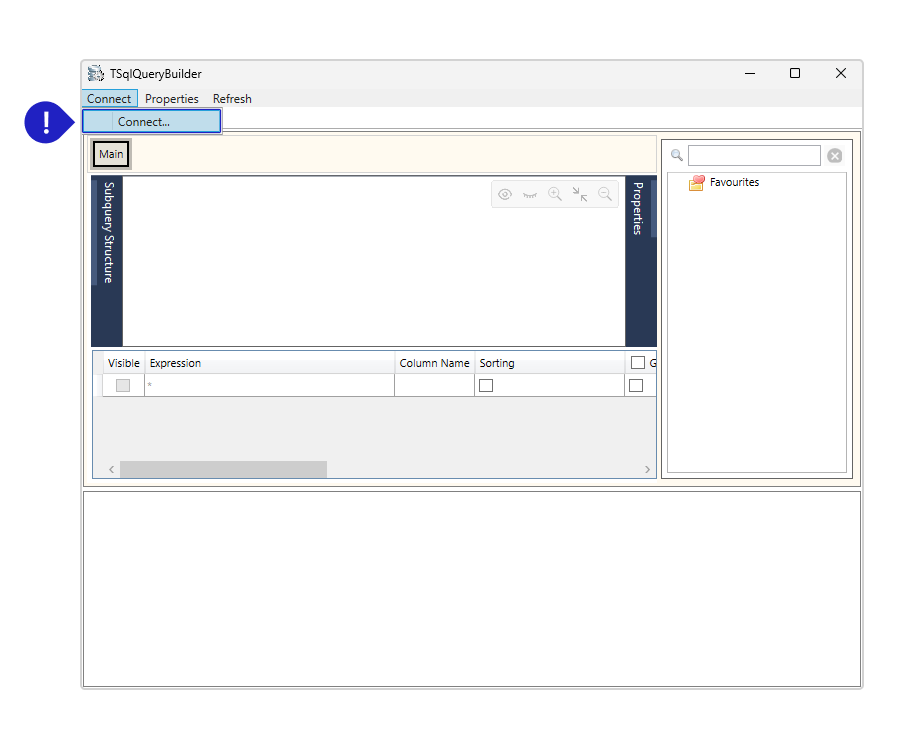
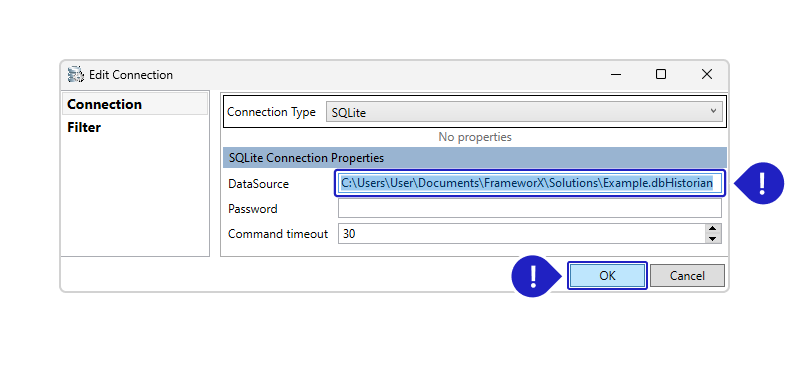
A popup will appear with a combo-box containing many types of providers. Select the one you will work with. In this example, we will set up a connection to a SQLite DB.
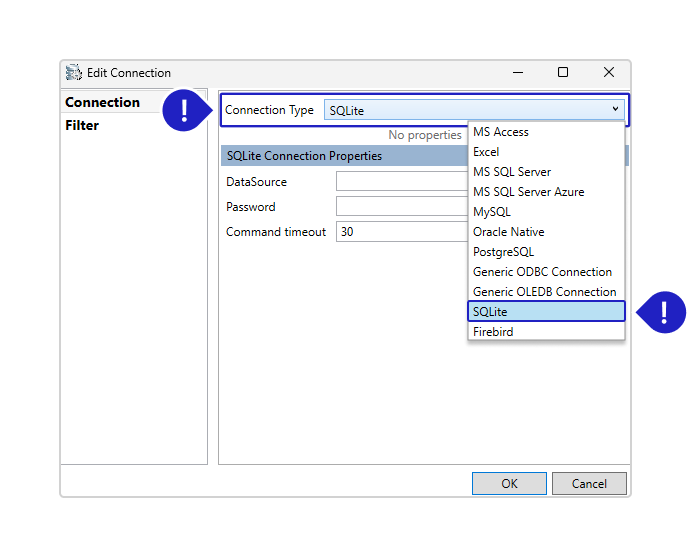
Now, we need to configure the path to the database. The path is the same one seen below in the Connection String’s DataSource field.
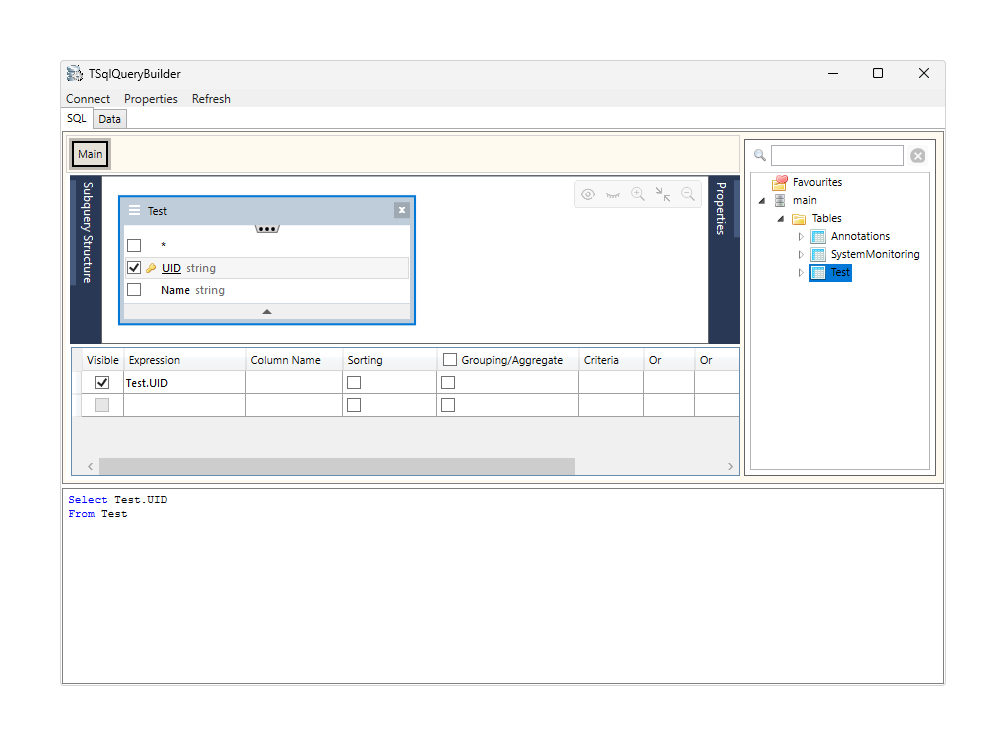
If you wrote the correct path, you should be able to see all available tables and their elements in the right corner. Double-click one of the them to load its elements into the Sub-Query Structure.
Inspecting Properties
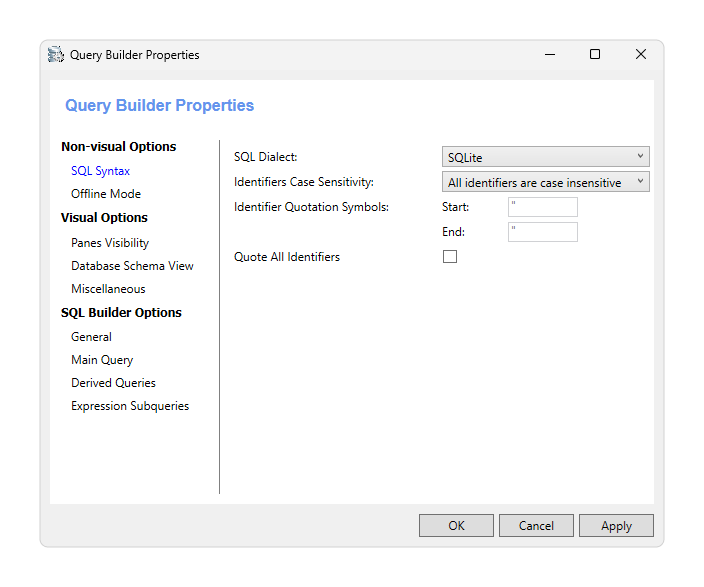
The Properties button is located in the top left corner. When you select it, a popup will open with the Visual Query Builder's customizable properties.
The image below shows all properties that are available to be customized.
Creating Statements
After the selected table is loaded into the sub-query structure, a statement will be initialized at the bottom of the page.
You can filter individual columns from the table by selecting specific checkboxes. When you do, the system will filter the table results based on your selection. If you do not select any checkboxes, the table will have not have any filters.
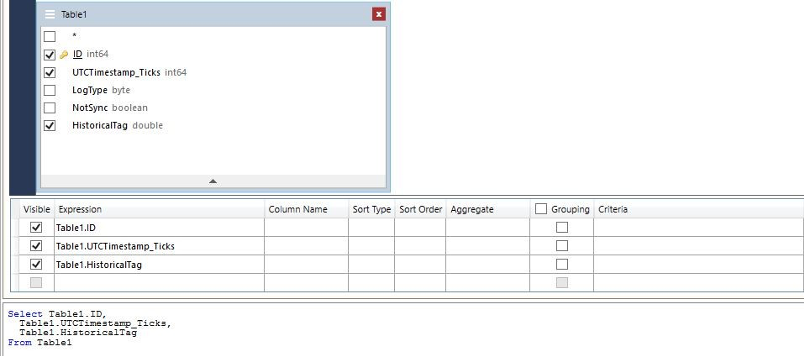
The columns allow you to add conditions which filter values from the table.
The column options are:
Visible: Remove the entire column from the query results.
Expression: The original column name.
Column Name: Give a table, or a column in a table, a temporary name. Aliases are often used to make column names more readable. An alias only exists for the duration of the query.
Sort Type: Sort the results in ascending or descending order.
Sort Order: Sort the order of the columns in the results.
Aggregate: The values of multiple rows are grouped together as input on certain criteria to form a single value of more significant meaning. E.g.: Avg, Count, Sum.
Grouping: Group column elements. Enable creating filter conditions for groups.
Criteria: Criteria for the selection condition E.g.: =, >, <, ! =.
Or: Same as the Criteria.
Statement Example
To better illustrate the Visual Query Builder feature, we will create an example which assumes the following requirements for our query result:
Only the UTCTimestamp Ticks and HistoricalTag columns are required.
All column names need to be easily understandable.
Elements will be sorted in ascending order.
We only want the HistoricalTag values between 10 and 35.
Fill in the columns with these requirements as seen in the image below.

If everything was filled in correctly, the final SQL Statement generated by the Visual Query Builder should be:
Select Table1 . Historical Tag As TagValue , Table1 . UTCTimestamp Ticks As Date
From Table1
Where Table1 . Historical Tag = Table1 . Historical Tag > 10 And Table1 . Historical Tag <= 35
Order By TagValue , Date
In this section...