Download the Solution File: ProveIT-2026.dbsln on Egnyte (version 1061) This file contains one solution (.dbsln), it doesn’t require any additional file to run it. |
System Architecture
This multi–bottling line solution collects data from a MES system and displays it in dashboards, including OEE and other KPIs. It connects to SQL Server and MQTT to capture both historical and real-time data, and it applies AI concepts such as ML.NET and MCP to enhance analytics and insights.
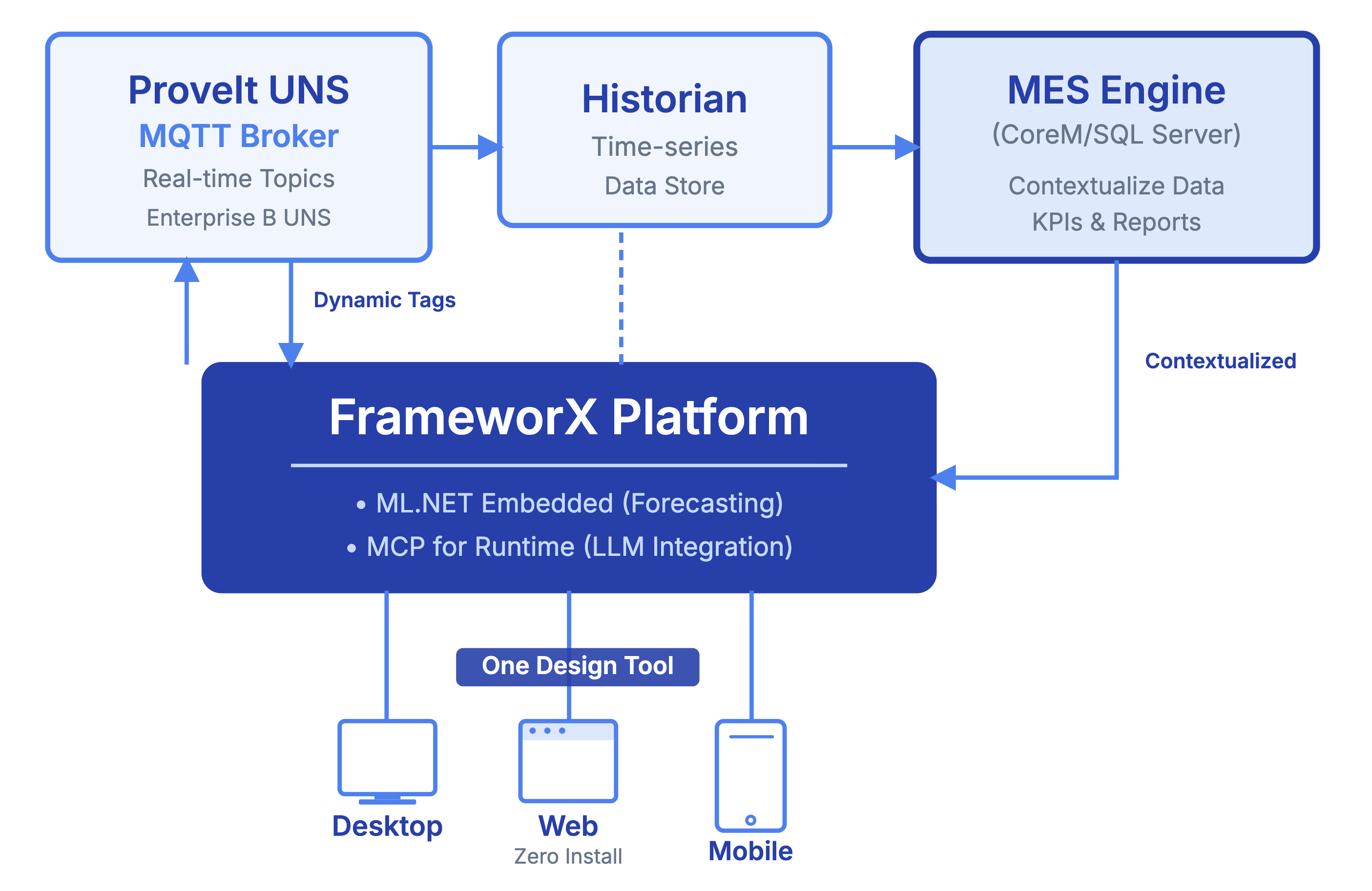
UNS
The Proveit solution organizes its data model following a Unified Namespace (UNS) structure. The UNS defines a standardized hierarchical tag structure that serves as the single source of truth for all operational data across the plant. It is organized by site, production area, and individual machines, ensuring consistent data access and interoperability throughout the system.
Sites
+-- Site1
    +-- FillerProduction
    |   +-- FillingLine01
    |       +-- CapLoader
    |       +-- Filler
    |       +-- Filler_Sim
    |       +-- Washer
    +-- Packaging
    |   +-- LabelerLine01
    |       +-- Labeler
    |       +-- Packager
    +-- Palletizing
        +-- Palletizer01
        |   +-- Pallet01
        |   +-- Pallet02
        +-- RobotPalletizer01
Each machine object listed above contains the following set of properties:
Name | Type |
|---|
Name | Type |
|---|---|
DTDowntimeTimeline | DataTable |
CurrentDown_ReasonAll | Text |
AvailabilityLimit | SpecLimits |
QualityLimit | SpecLimits |
PerformanceLimit | SpecLimits |
OEELimit | SpecLimits |
CurrentDown_Reason1 | Text |
CurrentDown_RunningorDown | Integer |
CurrentDown_Minutes | Double |
DTTop10RejectReasonsDay | DataTable |
DTTop10DurationDay | DataTable |
Previous2DayOEE | OEEData |
DTDayOEE | DataTable |
DTShiftOEE | DataTable |
DTTop10DurationShift | DataTable |
Previous3ShiftOEE | OEEData |
Previous2ShiftOEE | OEEData |
PreviousHourOEE | OEEData |
Previous1DayOEE | OEEData |
Previous1ShiftOEE | OEEData |
CurrentShiftOEE | OEEData |
CurrentDayOEE | OEEData |
CurrentHourOEE | OEEData |
EquipID | Integer |
Description | Text |
Displays
The Proveit solution includes a set of pre-built displays designed to provide comprehensive visibility into plant operations. The layout system supports three responsive modes — Desktop, Pad, and Mobile — allowing users to switch between them depending on their device.
The Home display serves as the initial landing page. From there, users can navigate to the Site display, which provides an overview of status, current downtime, production, and rejects for each machine in the site. The Area display drills deeper, showing OEE information, top downtime reasons, and rejects for each machine within a specific production area. The Line display presents production information along with a layout view of the line.
For OEE analysis, the solution offers multiple perspectives: OEE By Day shows OEE values with bar and line charts, OEE Bars provides a focused bar chart view, OEE by Time tracks OEE by smaller time buckets such as hours or intervals, and OEE Calcs explains the OEE calculation methodology.
Downtime analysis is covered by three displays: Downtime Timeline visualizes downtime events on a timeline filtered by time range, Downtime Summary presents a Pareto view of top causes and durations, and Downtime Edit allows operators to correct downtime events including reasons, categories, and timestamps. The Grid View display enables users to view production, events, and downtime data in a filterable table format.
The AI display provides access to the machine learning algorithms described in the ML.NET Forecasting section. Additionally, the Logon display manages user authentication and sessions, and the Theme display allows users to customize the UI appearance between light, dark, and contrast modes.
Displays | Content |
|---|
Displays | Content |
|---|---|
Layout | Change layout. (Desktop, Pad, Mobile) |
Home | Initial display |
Site | Status, current downtime, productions and rejects for each machine in the site. |
Area | Information, OEE, top downtime reasons and rejects for each machine in each area. |
Line | Production information and layout view. |
OEE By Day | OEE, Chart bar and Char line |
OEE Bars | OEE bar |
OEE Calcs | OEE calc explanation |
Downtime Timeline | Visualize downtime events on a timeline (by time range) |
Grid View | View data in a table (production, events, downtime) with filters |
OEE by Time | Track OEE by smaller time buckets (hour/intervals) |
Downtime Summary | See downtime summary/Pareto (top causes and durations) |
Downtime Edit | Edit/correct downtime events (reasons, categories, timestamps) |
Logon | Log in/out and manage the user session |
Theme | Change the UI theme/appearance (light/dark, contrast) |
AI | Machine learning algorythms |
MQTT
The solution communicates with the plant floor through MQTT, connecting to a virtual factory broker at virtualfactory.proveit.services on port 1883. Two channels are configured: a read-only Tag Provider that subscribes to real-time data with a 500ms read cycle, and a write-enabled Device channel used to publish new values back to the broker.
read-only Tag Provider:
Name | Protocol | PrimaryStation | Access | ReadTime |
MQTT | MQTT | virtualfactory.proveit.services;1883;_SolutionName_-_Guid_;proveitreadonly;#898AD18FFF8DFF90FF89FF9AFF96FF8BFF8DFF9AFF9EFF9BFF90FF91FF93FF86FF8FFF9EFF8CFF8CFF88FF90FF8DFF9BFF;;;None;False;;AtLeastOnce;10;False;False;;True | Read | 500ms |
write-enabled Device:
Name | Channel | PrimaryStation |
MQTTNode1 | Channel.MQTT | virtualfactory.proveit.services;1883;_SolutionName_-_Guid_TatsoftDevice;tatsoft;#CB4BE7CBFFB2FF96FF8CFF91FFC7FFDEFFAAFFC8FF88FFD2FFB7FF;None;;AtLeastOnce;10; |
Dataset
The solution uses a SQL Server dataset named CoreM, connected through the System.Data.SqlClient provider. The database is hosted on the frameworx server and stores the core operational data used across the solution, including production records, downtime events, and OEE calculations.
Name | Provider | Database | ConnectionString |
CoreM | System.Data.SqlClient | SQLServer | Data Source=frameworx;Initial Catalog=CoreM;Additional Parameters=User Id=sa |
ML.NET
The Proveit solution includes a Machine Learning algorithm built with ML.NET and C#, designed to forecast hourly production output for a filler machine. All Machine Learning algorithms were implemented entirely through Script Tasks and Script Classes within FrameworX, requiring only the import of ML.NET library references. The model is trained using a production data table called Input Training Data that contains hour-by-hour records including production volume, timestamps, product type, downtime, OEE, and other operational metrics from the filler machine.
Every day at midnight, the algorithm retrains using the full historical dataset and generates a 24-hour production forecast for the upcoming day. These predicted values are stored in a vector called Predicted Production, containing one entry for each hour of the day (00:00 through 23:00).
As the day progresses, the system collects the actual production values each hour and stores them in a separate vector called Real Production. This enables a real-time comparison between what the model predicted and what was actually produced, which can be visualized through a trend chart.
Additionally, the model is consumed once per hour to refine its predictions based on the most recent real production data from the current and previous days. The system also calculates an end-of-day production estimate by summing the real production accumulated so far with the predicted production for the remaining hours of the day.
MCP
Server setting
The MCP server is configured through a JSON file that defines the API key, certificate settings, listening port, and runtime connection parameters. The server listens on port 3000 and connects to the FrameworX runtime at localhost:3101.
{
  "appSettings": {
    "X_API_KEY": "",
    "CertFileName": "",
    "CertPass": "",
    "CertHash": "",
    "ListenPort": "3000",
    "Runtime": {
      "Host": "localhost",
      "Port": "3101",
      "Username": "guest",
      "Password": ""
    }
  }
}
Run “C:\Program Files (x86)\Tatsoft\FrameworX_1058\fx-10\net8.0\MCP\RuntimeMCPHttp.exe”
Claude setting
The Claude Desktop configuration includes two MCP servers: ProveIt-2026 connects to the remote runtime MCP hosted on the cloud via SSE, and MCP-Designer connects to the local FrameworX designer MCP. Node.js must be installed for the remote connection to work, as it uses npx mcp-remote to bridge the SSE transport.
{
  "mcpServers": {
    "ProveIt-2026": {
      "command": "C:\\WINDOWS\\System32\\cmd.exe",
      "args": [
        "/C",
        "C:\\Program Files\\nodejs\\npx.cmd",
        "-y",
        "mcp-remote",
        "http://40.76.104.252:3000/sse",
        "--allow-http"
      ]
    },
    "MCP-Designer": {
      "command": "C:\\Program Files (x86)\\Tatsoft\\00 - v10\\FrameworX_v1058\\fx-10\\MCP\\DesignerMCP.exe"
    }
  },
  "preferences": {
    "coworkScheduledTasksEnabled": false,
    "sidebarMode": "chat",
    "chromeExtensionEnabled": false
  }
}
Install Node.JS for remote connection.
This setting include connection to local MCP Designer and remote MCP Runtime.
MCP Runtime Chat
This chat connects to a remote FrameworX solution via MCP runtime tools, querying ML.NET production forecasts and downtime events for real-time diagnostics.
MCP Designer querie
“Create a new solution for a bottling line, with the equipment filler, washer and caploader. UNS ISA-95, value simulator protocol for the tags using SINE and BOOL, historian archiving, select two tags for alarms example. Create a dashboard 3 x 2 with gauges on the first row, trend, Alarm and DataGrid on the second row. In your final report, give recommendations for next steps for the solution, including good tag candidates to apply ML. We are live at ProveIT trade show, so as you do, explain briefly to the audience what you are doing.“
Solution created:ProveIT BottlingLine.dbsln on Egnyte
Claude chat used to create the solution:MCP-Designer-ProveIt
MCP Skill
Skill file: Skill-ProveIT.md on Egnyte
Solution created from the Skill:Skill.dbsln on Egnyte
Claude chat used to create the solution: Skill-ProveIt